MusicBee Remote Plugin
MBXRemote requires the MusicBee Remote Control plugin "MBRC" to be installed on the MusicBee host system. This plugin enables network communication between MBXRemote and MusicBee using the MusicBee Remote Protocol.
✔ Protocol v4.0 compatibility tests: PASSED (24/24)
✔ Protocol v4.5 compatibility tests: PASSED (17/17)
Validated with mbrcpval v1.5.26.6 protocol validator.
Release Note: v1.5.x is a fork of the OG MBRC plugin. The primary use case and target is to support MBXRemote. This codebase has significant modifications and enhancements. Basic functionality works with the existing Android and iOS clients. Help us improve compatibility - try it out and report any issues you encounter!
Beta Status: The codebase passes compatibility tests and appears stable, but needs more real-world testing before it can be considered production-ready. The protocol validator is still new and may not catch all edge cases.
* Development says "production-ready" - the boss says "beta until more real-world testing" ;)
Plugin Versions
| Version | Protocol | Features | MBXRemote Compatibility |
|---|---|---|---|
| Standard Plugin v1.4.1 | v4.0 | Basic playback control, library browsing, now playing info | Basic features work |
| v1.5.26.6 BETA wanna-bee | v4.5 | All standard features + ARiA, Library Subscriptions, Remote Library Editing, extended metadata, album navigation, podcasts | Recommended |
Standard Plugin Installation
The standard MusicBee Remote plugin is available from the MusicBee Add-ons page:
The standard plugin provides basic playback control and library browsing. For full MBXRemote functionality, use the extended plugin v1.5.26.4 or later see below.
Plugin Configuration
- Go to Edit > Preferences > Plugins
- Find MusicBee Remote in the list
- Click "Configure"
- Set the Port (default: 3000)
- Enable "Start with MusicBee"
- Click OK and restart MusicBee
Extended Plugin with ARiA Support
To use Initiator Actions, you need version v1.5.x or later of the plugin which includes ARiA (Arbitrary Remote Initiated Actions) support.
ARiA Features (v1.5.26.4+)
- Remote Keyboard Automation: Execute keyboard commands on the MusicBee host
- Tab Navigation: Switch MusicBee UI tabs remotely using RIA1-10 hotkeys
- Focus Control: Send keys to MusicBee (
!mb!) or current window (!nofocus!) - Command Chaining: Execute multiple commands with delays (
sndKeys();delay();sndKeys()) - Security Toggle: ARiA can be enabled/disabled in plugin settings
Enhancements Over Standard Plugin
- Enhanced Metadata: Album and artist counts included in library browsing
- Extended Track Data: Library tracks include Year, Rating, Bitrate, Format, PlayCount, SkipCount, LastPlayed, and Loved fields
- Protocol Negotiation: Plugin responds with v4.5 features when requested by the client
- Library Subscriptions: Plugin supports real-time library change notifications - clients can subscribe to receive updates when tracks are modified, rated, played, or deleted
- Remote Library Editing: Edit ratings and love status remotely - changes write back to MusicBee library instantly
Library Subscriptions - Real-Time Change Notifications
v4.5 clients can subscribe to receive instant notifications when the MusicBee library changes:
- Subscribe/Unsubscribe:
librarysubscribe/libraryunsubscribecommands - Tag Changes:
librarytagchanged- track metadata modified (title, artist, album, etc.) - Rating Changes:
libraryratingchanged- star rating updated - Play Counter:
libraryplaycounterchanged- play count or skip count updated - File Deleted:
libraryfiledeleted- track removed from library
Use Case: Keep client-side caches in sync without polling. MBXRemote uses this for real-time SQL cache updates.
v4.5 Extended Metadata
Protocol v4.5 clients receive full engagement metadata for library tracks, enabling local caching and advanced features:
| Field | Type | Description |
|---|---|---|
playcount | integer | Number of times track has been played |
skipcount | integer | Number of times track was skipped |
lastplayed | datetime | When track was last played (e.g., "2025-12-20 14:30:00") |
dateadded | datetime | When track was added to library (e.g., "2024-06-15 09:00:00") |
loved | string | Love status: "L" = Loved, "B" = Banned, "" = Neither |
rating | string | Star rating (0-5 scale, e.g., "4.5") |
year | string | Release year |
bitrate | string | Audio bitrate in kbps |
format | string | Audio format (MP3, FLAC, etc.) |
Usage: Request protocol version 4.5 in handshake to receive extended fields in browsetracks responses. See Protocol SDK for details.
Remote Library Editing - Edit Ratings & Love Status
v4.5 clients can now modify track metadata in MusicBee, not just read it:
- Set Star Ratings: Rate any library track from 0-5 stars using
librarysetrating - Love/Ban Tracks: Toggle love status for any track using
librarysetlove - Library-Wide: Works on any track by file path, not just currently playing
- Instant Sync: Changes are saved to MusicBee immediately
MBXRemote Integration: Right-click any track in the Library view to set ratings or love status. See Protocol SDK for API details.
MusicBee 3.1+ Features
- Podcast Support: Browse subscriptions, list episodes, and play podcasts remotely
- Album Navigation: Skip to next/previous album in the now playing queue
- Playlist Notifications: Real-time notifications when playlists are created, updated, or deleted
🔒 Security Note
ARiA is disabled by default. You must explicitly enable it in the plugin settings to allow remote keyboard automation. When disabled, all standard music control features continue to work normally.
Extended Plugin Download
1.5.26.6 BETA
MusicBee Remote Plugin v1.5.x with ARiA support.
Download PluginCompatible with MBXRemote v1.0.x
Extended Plugin Installation
Easy Install (Recommended)
- Download the plugin ZIP file above
- Open MusicBee
- Go to Edit > Preferences > Plugins
- Click "Add Plugin"
- Select the downloaded
MBRC-Plugin-latest.zip - Restart MusicBee
- Enable ARiA in plugin settings if you want Initiator Actions
How to Enable ARiA
ARiA is disabled by default for security. After installing the extended plugin:
- Go to Edit > Preferences > Plugins
- Find MusicBee Remote and click "Configure"
- Check "Enable ARiA (Arbitrary Remote Initiated Actions)"
- Click OK
Protocol version is negotiated based on the client's request (v4 or v4.5). ARiA controls whether keyboard automation commands are processed.
How to Enable Experimental Features
Experimental features (like Visualizer control) are disabled by default. To enable:
- Go to Edit > Preferences > Plugins
- Find MusicBee Remote and click "Configure"
- Check "Enable Experimental Features"
- Click OK
Experimental features may not work with all MusicBee configurations. Enable at your own discretion.
MusicBee Remote Plugin Settings Dialog
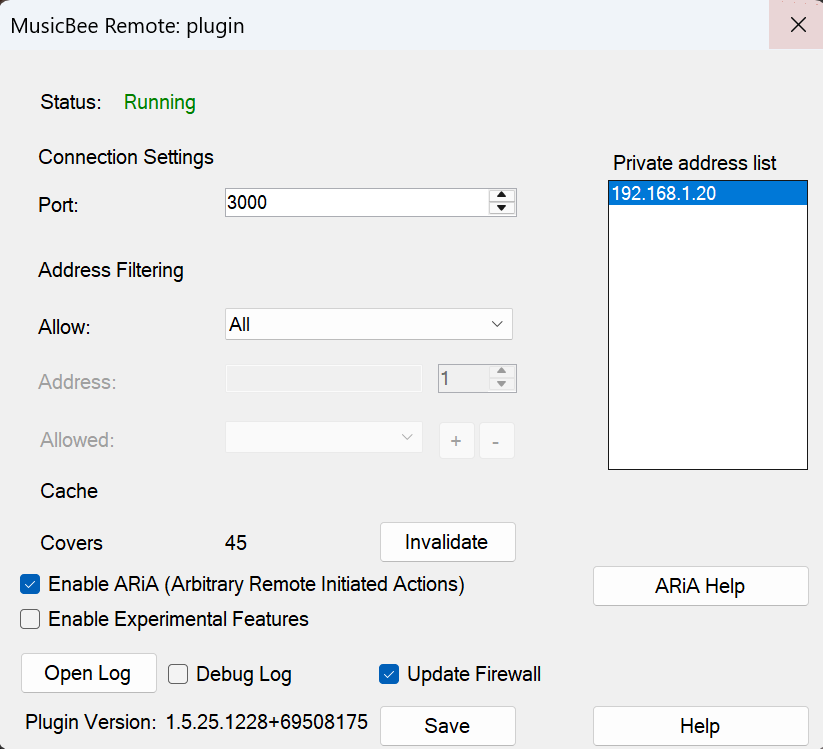
Plugin settings showing Connection Settings, Address Filtering, Cache, ARiA, Experimental Features, Debug Log, and Update Firewall options
Protocol 4.5 Feature Availability
Plugin v1.5.x negotiates the protocol version based on the client's request. Feature availability depends on the negotiated version, settings, and MusicBee version:
| Feature Set | Requirement | Commands |
|---|---|---|
| Extended Track Metadata | Client requests v4.5+ | year, rating, bitrate, format in browsetracks |
| ARiA (Initiator Actions) | ARiA enabled in plugin settings | playerinitiatoraction |
| Storage Path | ARiA enabled in plugin settings | pluginstoragepath |
| Album Navigation | MusicBee 3.1+ (API 50) | playernextalbum, playerpreviousalbum |
| Podcasts | MusicBee 3.1+ (API 51) | podcastsubscriptions, podcastepisodes, podcastplay |
| Playlist Notifications | MusicBee 3.1+ (API 49) | playlistcreated, playlistupdated, playlistdeleted |
| Visualizer Control EXPERIMENTAL | Experimental Features enabled in plugin settings | playervisualizer, playervisualizerlist |
| Remote Library Editing NEW | Client requests v4.5+ | librarysetrating, librarysetlove |
Network Configuration
Ports Used
| Port | Protocol | Purpose | Configurable |
|---|---|---|---|
| 45345 | UDP Multicast | Service discovery (clients find the plugin) | No (hardcoded) |
| 3000 (default) | TCP | Remote protocol communication | Yes (in plugin settings) |
Address Filtering
The plugin can restrict which IP addresses are allowed to connect. Configure this in the plugin settings dialog.
| Mode | Behavior |
|---|---|
| All | Any IP address can connect (no filtering) |
| Range | Only IPs in a subnet range can connect (e.g., 192.168.1.1 - 192.168.1.254) |
| Specified | Only explicitly listed IP addresses can connect |
To add allowed IPs (Specified mode):
- Set Allow dropdown to "Specified"
- Type an IP address in the Address field (turns green when valid)
- Click + to add it to the allowed list
- Use - to remove selected IPs from the list
Firewall Configuration
The plugin includes a built-in firewall configuration option that automatically creates the necessary Windows Firewall rules:
- In the plugin settings, check the "Configure Firewall" checkbox
- Click Save
- Approve the UAC (User Account Control) prompt when it appears
- Done - the firewall is now configured based on your plugin settings
This automatically allows:
- TCP on your configured listening port (default 3000)
- UDP 45345 for service discovery multicast
Troubleshooting
MBXRemote Can't Find MusicBee
Connection Flow:
- Client sends UDP multicast to
239.1.5.10:45345→ "Any MusicBee Remote here?" - Plugin responds with server info including the configured listening port
- Client connects via TCP to
<server-ip>:<listening-port>
If discovery fails:
- Verify MusicBee is running with the plugin enabled
- Check that both computers are on the same network subnet
- Enable the "Configure Firewall" option in plugin settings and save
- Try manual connection using the MusicBee host's IP address
Connection Drops or Times Out
- Enable the "Configure Firewall" option in plugin settings if not already enabled
- Verify the configured port matches between plugin and MBXRemote
- Ensure no other application is using the same port
- Check network stability between the two computers
Initiator Actions Not Working
- Verify you have plugin version v1.5.x or later installed
- Enable ARiA in plugin settings (disabled by default for security)
- Check that MusicBee window is not minimized on the host
- Check plugin logs at:
%APPDATA%\MusicBee\mb_remote\ - Test with a simple action first:
sndKeys(CTRL ALT Q)
Plugin Not Loading
- Ensure MusicBee version is 3.0 or higher
- Check that .NET Framework 4.7.2+ is installed on the host
- Verify plugin files are in the correct folder
- Look for error messages in MusicBee's error log
Developer Resources
For protocol implementation details, testing tools, and technical specifications:
- Protocol SDK - Complete protocol specification, message formats, and implementation guide
- Protocol Validator - Standalone validation utility for testing plugin protocol compliance
- Protocol Testing - MBXRemote's built-in compatibility tester and XML/DB comparison tools
Attribution
The original MusicBee Remote plugin and Android client were developed by Konstantinos Paparas. MBXRemote extends this work to provide a Windows desktop remote control experience.
This plugin is licensed under the GNU General Public License, version 3 (GPLv3). You may obtain the complete corresponding source code for this plugin in the resources below.
Mobile Clients & Other Resources
- plugin_CHANGELOG.md
- MBRC-Server-Plugin-Protocol SDK
- Plug-in Sources (Halrad-fork-mbrc-plugin-main-server-latest_src.zip)
- Original MBRC Plugin Repository - kelsos/mbrc-plugin on GitHub
- Official MBRC Plugin v1.4.1 - Standard plugin from MusicBee Add-ons
- Official MBRC Documentation
- MusicBee Remote for Android
- MusicBee Remote for iOS