Initiator Actions
Initiator Actions are Remote Initiated Actions (RIA) that let you trigger complex automation scripts on the MusicBee system from your remote desktop. When you press a hotkey in MBXRemote, the action script is sent over the network to MusicBee, where it executes directly on the host machine.
The Jukebox Use Case
Imagine your MusicBee runs on a media center PC connected to your living room TV - a digital jukebox. With Initiator Actions, you can sit on your couch with a laptop and remotely switch between MusicBee's UI tabs displayed on the big screen. Change from Now Playing to your Library, switch playlists, or navigate visualizers - all from across the room.
Plugin Requirement
Extended MusicBee Remote Plugin Required: Initiator Actions require the extended plugin v1.5.x with ARiA support enabled.
Setting Up MusicBee for RIA
This is the Important Part
Before using Initiator Actions, you must configure MusicBee itself with hotkeys. These are the hotkeys that MBXRemote will send remotely. You can send any hotkey you configure in MusicBee - tab switching is just one example.
Step 1: Open MusicBee Preferences > Hotkeys
- Open MusicBee on your jukebox/media center PC
- Go to Edit > Preferences
- Select Hotkeys from the left panel
Step 2: Configure Tab Navigation Hotkeys
Find the "General: Goto Tab X" actions and assign hotkeys. The screenshot below shows a typical configuration:
MusicBee Preferences > Hotkeys
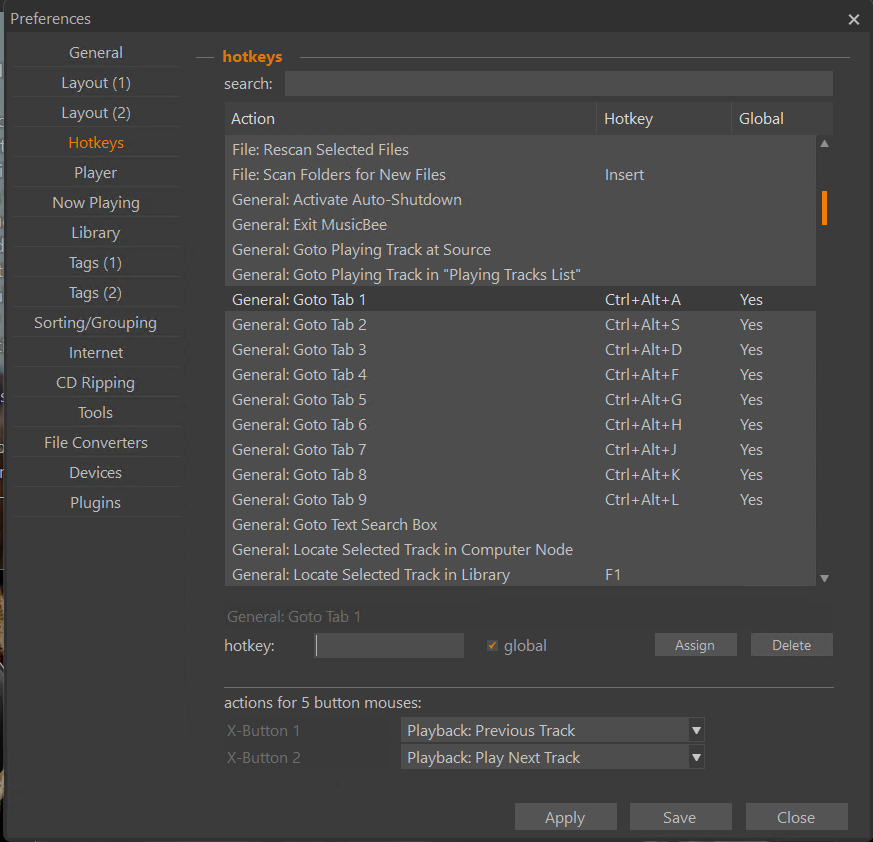
Example configuration using home-row keys:
| MusicBee Action | Hotkey | Global |
|---|---|---|
| General: Goto Tab 1 | Ctrl+Alt+A | Yes |
| General: Goto Tab 2 | Ctrl+Alt+S | Yes |
| General: Goto Tab 3 | Ctrl+Alt+D | Yes |
| General: Goto Tab 4 | Ctrl+Alt+F | Yes |
| General: Goto Tab 5 | Ctrl+Alt+G | Yes |
| General: Goto Tab 6 | Ctrl+Alt+H | Yes |
| General: Goto Tab 7 | Ctrl+Alt+J | Yes |
| General: Goto Tab 8 | Ctrl+Alt+K | Yes |
| General: Goto Tab 9 | Ctrl+Alt+L | Yes |
Step 3: Enable ARiA in Plugin Settings
- Still in Preferences, go to Plugins
- Find MusicBee Remote and click "Configure"
- Check "Enable ARiA (Arbitrary Remote Initiated Actions)"
- Click Save to apply all changes
Auto-Configure MusicBee Hotkeys
Instead of manually configuring hotkeys in MusicBee, you can use MBXRemote to automatically add the ARiA hotkeys:
- In MBXRemote, go to Settings > Hotkeys
- Click "MusicBee ARiA Keys"
- Review the status and click Yes to add missing hotkeys
- Restart MusicBee to apply the changes
MBXRemote Auto-Configure
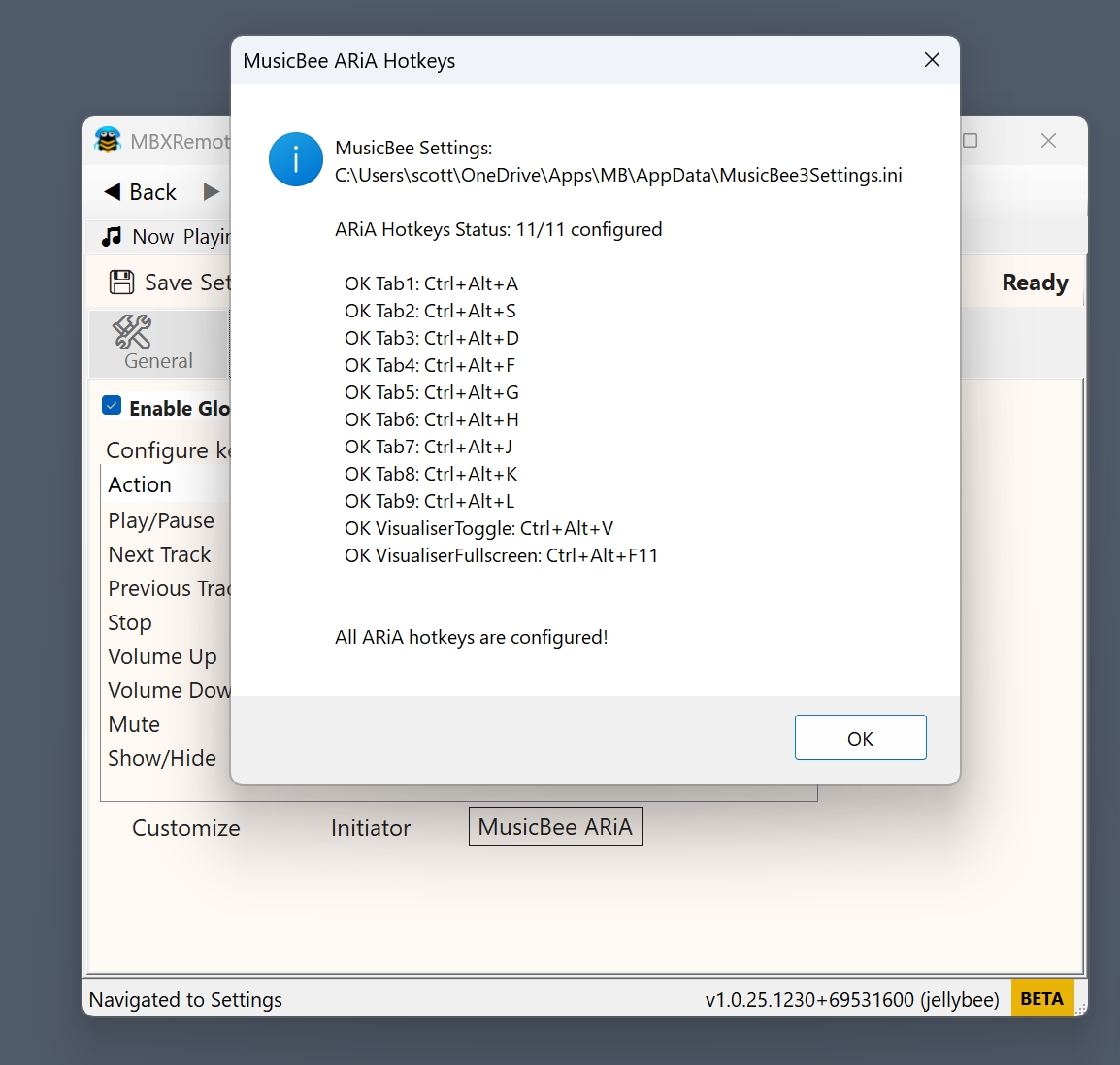
This automatically configures 10 global hotkeys in MusicBee:
- Ctrl+Alt+A through Ctrl+Alt+L - Tab navigation (Tabs 1-9)
- Ctrl+Alt+Shift+V - Toggle Visualizer
How It Works
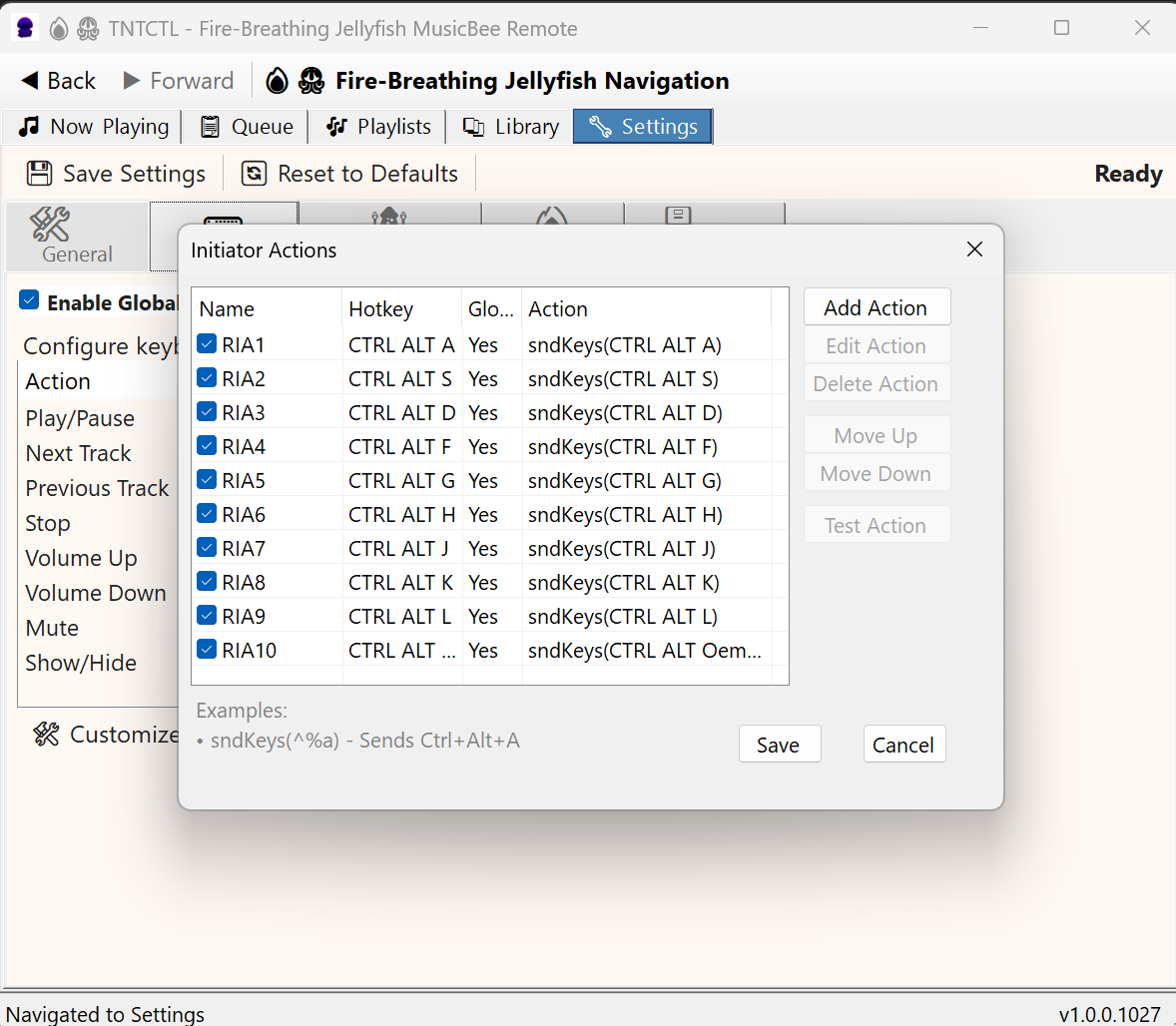
Create an Initiator Action in MBXRemote with a hotkey and action script.
Press the assigned hotkey on your remote Windows desktop.
MBXRemote sends the action command over the network to MusicBee.
The MusicBee plugin executes the script on the host machine.
Quick Start
- Go to Settings > Hotkeys
- Click "Initiator Actions"
- Click "Add Action"
- Set a name, hotkey, and action script
- Click "Save"
Initiator Actions Manager
Command Reference
sndKeys - Send Keyboard Input to MusicBee Host
Sends keyboard combinations to the MusicBee host system. The keystrokes execute on the remote machine where MusicBee is running.
sndKeys(keys)
Key Modifiers
| Modifier | Symbol | Alternative |
|---|---|---|
| Control | ^ | CTRL |
| Alt | % | ALT |
| Shift | + | SHIFT |
| Windows | - | WIN |
Examples
sndKeys(^%a)           // Ctrl+Alt+A on MusicBee host
sndKeys(CTRL ALT Q)    // Ctrl+Alt+Q (alternative syntax)
sndKeys(^a)            // Ctrl+A (Select All) on host
sndKeys({F5})          // F5 key on host
sndKeys(Hello{ENTER})  // Type "Hello" and press Enter on host
Special Keys
| Key | Syntax |
|---|---|
| Enter | {ENTER} |
| Tab | {TAB} |
| Escape | {ESC} |
| Function Keys | {F1} - {F12} |
| Arrow Keys | {UP} {DOWN} {LEFT} {RIGHT} |
| Backspace | {BACKSPACE} |
| Delete | {DELETE} |
| Home/End | {HOME} {END} |
| Page Up/Down | {PGUP} {PGDN} |
delay - Add Delay Between Commands
Pauses execution between commands on the remote host.
delay(milliseconds)

// Examples:
delay(100)   // Wait 100ms
delay(1000)  // Wait 1 second
delay(5000)  // Wait 5 seconds
mouseClick - Remote Mouse Click
Clicks at specified screen coordinates on the MusicBee host machine.
mouseClick(x, y [, button])

// Examples:
mouseClick(500, 300)          // Left click at (500, 300) on host
mouseClick(100, 200, right)   // Right click on host
mouseClick(640, 480, middle)  // Middle click on host
volume - Control Windows System Volume
Controls the Windows system volume on the MusicBee host machine. This adjusts the OS-level audio, not MusicBee's internal volume (which is controlled via the standard playback commands).
volume(action)

// Examples:
volume(up)      // Increase system volume one step
volume(down)    // Decrease system volume one step
volume(mute)    // Toggle system mute
volume(5)       // Increase 5 steps
volume(-3)      // Decrease 3 steps
playervolume protocol command (via MBXRemote's volume slider) to control MusicBee's internal volume level.
restart - Restart MusicBee or Host System
Restarts MusicBee or the entire host Windows system.
restart(target)

// Examples:
restart(musicbee)  // Restart MusicBee on host
restart(mb)        // Restart MusicBee (short form)
restart(system)    // Restart the host computer
restart(host)      // Restart the host computer (alias)
restart(shutdown)  // Shutdown the host computer
restart(system) and restart(shutdown) will restart/shutdown the remote MusicBee host computer, not your local machine!
run - Launch Program on Host
Starts an external program on the MusicBee host system.
run(program[, arguments])

// Examples:
run(notepad.exe)                        // Open Notepad on host
run(calc.exe)                           // Open Calculator on host
run(C:\Program Files\app.exe)           // Run with full path
run(C:\Scripts\backup.bat, /silent)     // Run with arguments
Launching Remote Apps via Initiator Actions
A powerful use case is launching audio applications on your jukebox from your remote desktop. For example, if you have slPhantomRemote or other automation tools installed on your MusicBee host:
// Launch slPhantomRemote with dialog mode (shows UI picker)
run(slPhantomRemote, -play dialog)

// Launch slPhantomRemote with a specific preset
run(slPhantomRemote, -play arch)

// Launch a visualizer application
run(C:\Program Files\ProjectM\projectM.exe)

// Run a voice announcement script
run(powershell.exe, -File C:\Scripts\announce.ps1 "Now Playing")
run(slPhantomRemote, -play arch);delay(2000);sndKeys(^%w)
This launches slPhantomRemote, waits 2 seconds, then switches to MusicBee's Library tab.
Command Chaining
Chain multiple commands with semicolons (;). All commands execute sequentially on the remote host:
// Select all and copy (on MusicBee host)
sndKeys(^a);delay(100);sndKeys(^c)

// Navigate to MusicBee tab and refresh
sndKeys(^%q);delay(200);sndKeys({F5})

// Decrease system volume and navigate
volume(-3);delay(100);sndKeys(^%m)

// Complex remote automation
sndKeys(^i);delay(200);sndKeys(^a);delay(100);sndKeys(^c);delay(100);sndKeys({ESC})
Use Cases
Remote Tab Switching on Your TV
Your MusicBee is displaying on the living room TV. From your laptop on the couch, switch what's shown on the big screen:
sndKeys(^%q)  // Switch to Now Playing view on TV
sndKeys(^%w)  // Switch to Library view on TV
sndKeys(^%e)  // Switch to Playlists view on TV
Control the Jukebox Display
Navigate MusicBee's interface on your media center without getting up:
- Switch between Now Playing, Library, Playlists, and Queue tabs
- Show or hide visualizers on the big screen
- Navigate through artist/album/track lists
Remote Playlist Control
Trigger MusicBee playlist shortcuts on your jukebox system:
sndKeys(^%1) // Play playlist 1 on MusicBee host
Remote System Control
Control the MusicBee host system when things go wrong:
restart(musicbee) // Restart MusicBee if it's unresponsive
Complex Remote Workflows
Chain commands for complex remote automation on your media center:
volume(up);volume(up);delay(500);sndKeys(^%w);delay(500);sndKeys(^p)
Increases system volume two steps, switches to Library tab, starts playback - all executed on your media center.
Tab Navigation Scripts
With MusicBee configured as shown above, use these scripts to switch tabs remotely:
| Tab | MusicBee Hotkey | Initiator Action Script |
|---|---|---|
| Tab 1 | Ctrl+Alt+A | sndKeys(^%a) or sndKeys(CTRL ALT A) |
| Tab 2 | Ctrl+Alt+S | sndKeys(^%s) or sndKeys(CTRL ALT S) |
| Tab 3 | Ctrl+Alt+D | sndKeys(^%d) or sndKeys(CTRL ALT D) |
| Tab 4 | Ctrl+Alt+F | sndKeys(^%f) or sndKeys(CTRL ALT F) |
| Tab 5 | Ctrl+Alt+G | sndKeys(^%g) or sndKeys(CTRL ALT G) |
| Tab 6 | Ctrl+Alt+H | sndKeys(^%h) or sndKeys(CTRL ALT H) |
| Tab 7 | Ctrl+Alt+J | sndKeys(^%j) or sndKeys(CTRL ALT J) |
| Tab 8 | Ctrl+Alt+K | sndKeys(^%k) or sndKeys(CTRL ALT K) |
| Tab 9 | Ctrl+Alt+L | sndKeys(^%l) or sndKeys(CTRL ALT L) |
Default Initiator Actions
MBXRemote includes pre-configured Initiator Actions that match the MusicBee setup above:
| MBXRemote Hotkey | Sends to MusicBee | Result |
|---|---|---|
| Ctrl+Alt+A | sndKeys(^%a) | Goto Tab 1 |
| Ctrl+Alt+S | sndKeys(^%s) | Goto Tab 2 |
| Ctrl+Alt+D | sndKeys(^%d) | Goto Tab 3 |
| Ctrl+Alt+F | sndKeys(^%f) | Goto Tab 4 |
| Ctrl+Alt+G | sndKeys(^%g) | Goto Tab 5 |
| Ctrl+Alt+H | sndKeys(^%h) | Goto Tab 6 |
| Ctrl+Alt+J | sndKeys(^%j) | Goto Tab 7 |
| Ctrl+Alt+K | sndKeys(^%k) | Goto Tab 8 |
| Ctrl+Alt+L | sndKeys(^%l) | Goto Tab 9 |
Tips & Best Practices
Timing
- Add delays (100-200ms) between commands for reliable remote execution
- Use longer delays for UI-heavy operations on the remote host
- Network latency may require slightly longer delays than local macros
Hotkey Selection
- Avoid conflicts with local system hotkeys
- Use Ctrl+Alt+Key combinations for safety
- Test hotkeys before deploying for daily use
Remote Execution
- Remember: commands execute on the MusicBee host, not locally
- Verify MusicBee is connected before testing actions
- Screen coordinates for mouseClick are relative to the host display
Troubleshooting
Action Not Triggering
- Verify MBXRemote is connected to MusicBee
- Check that the hotkey is enabled
- Look for hotkey conflicts with other local apps
- Ensure "Global Hotkey" is checked if using when minimized
Remote Commands Not Working
- Verify network connection to MusicBee
- Add delays between chained commands
- Check that MusicBee window is active on the host for sndKeys
- Test commands individually to isolate issues
Limitations
- No conditional logic (if/then/else)
- No loops or repetition
- No variables or state storage
- Sequential execution only
- Requires active network connection to MusicBee
- Commands execute in MusicBee plugin's security context on the host