User Guide
Control your Devialet Phantom speakers from Windows
Version 1.0 | Download
Quick Start
- Download slPhantomRemote.exe
- Run - No installation needed
- Select your Phantom from the list
- Control playback, volume, and sources
Requires: Windows 10/11, .NET 8.0, Devialet firmware 2.14+
Key Features
Discovery | Playback | Sources | Themes | System Tray | CLI
Discovery and Connection
Smart Discovery - Automatic detection of all Phantom devices on your network
Favorite Device - Star your primary device for instant connection on startup
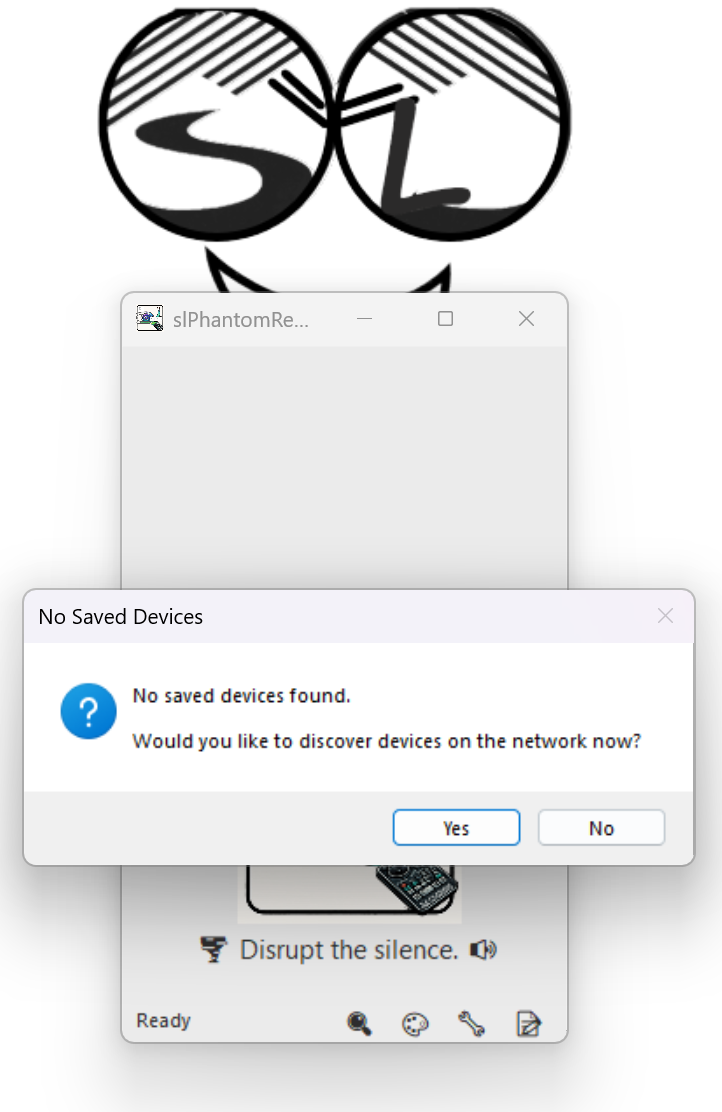
First Run
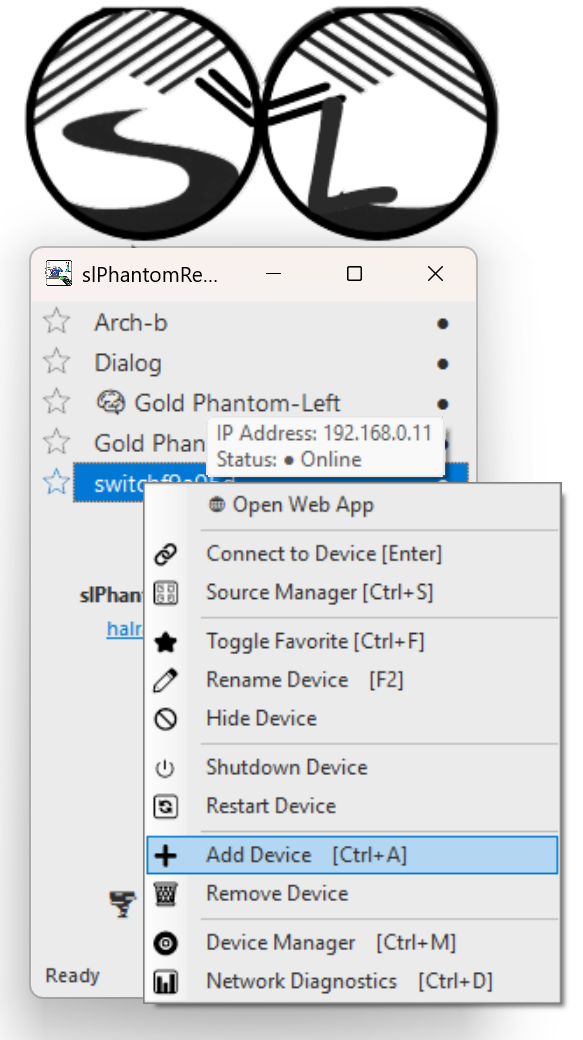
Context Menu
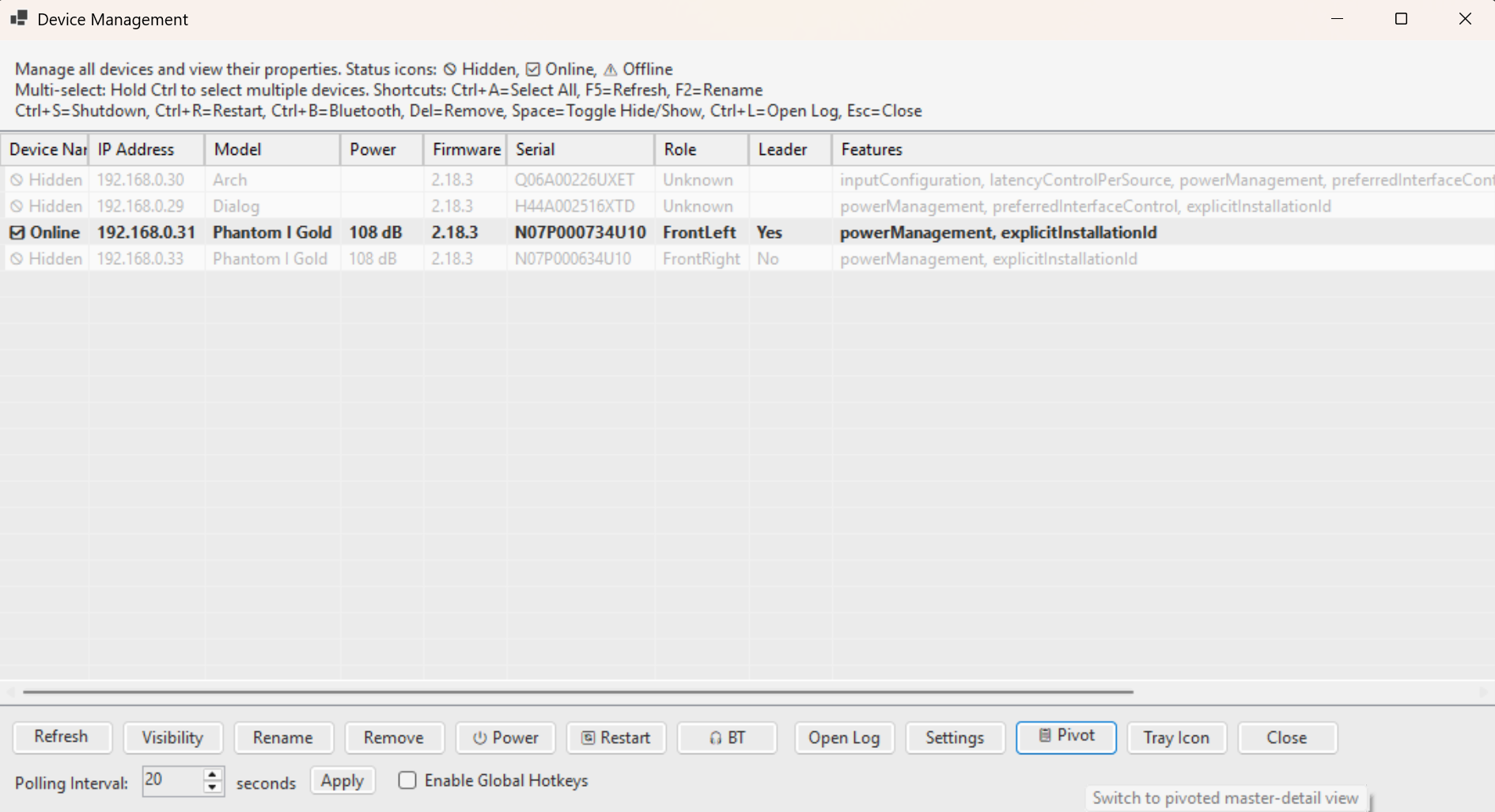
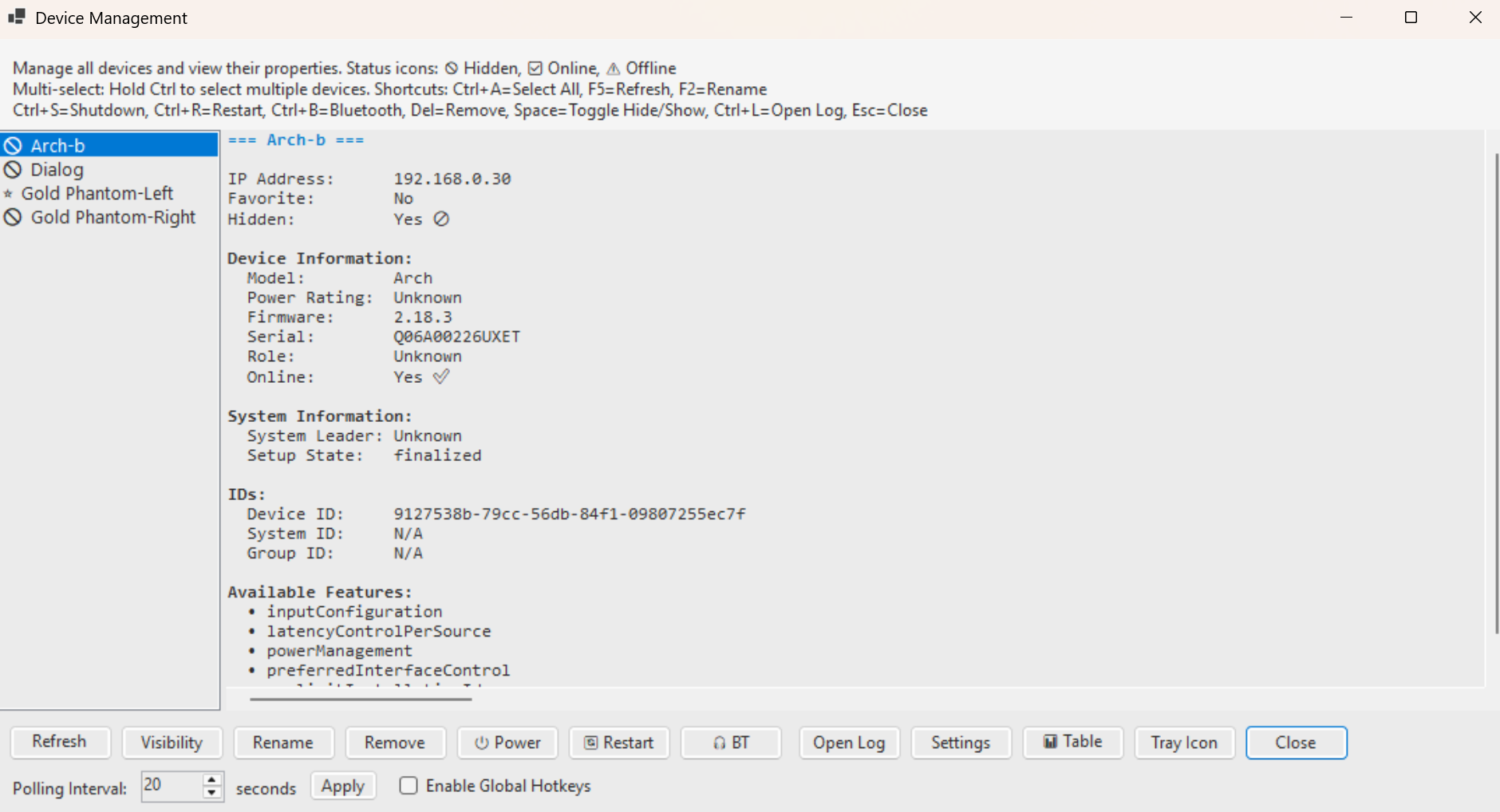
Device Management
Device Manager - Table View
Device Manager - Pivot View
Playback Experience
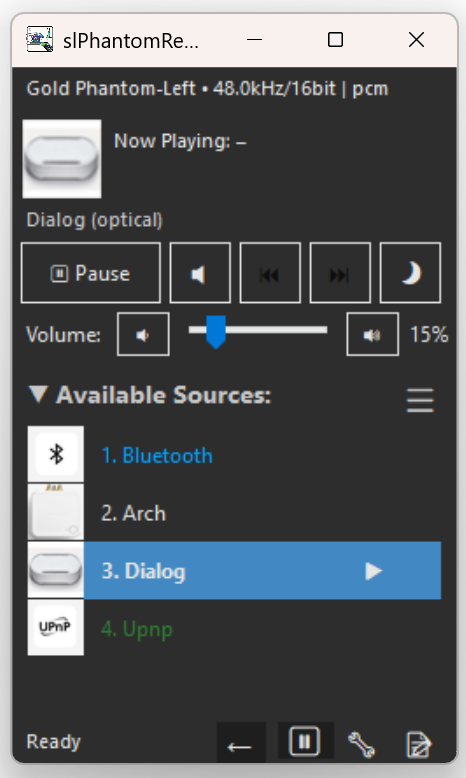
Dynamic Interface - Adaptive UI that shows more detail when needed
Standard View
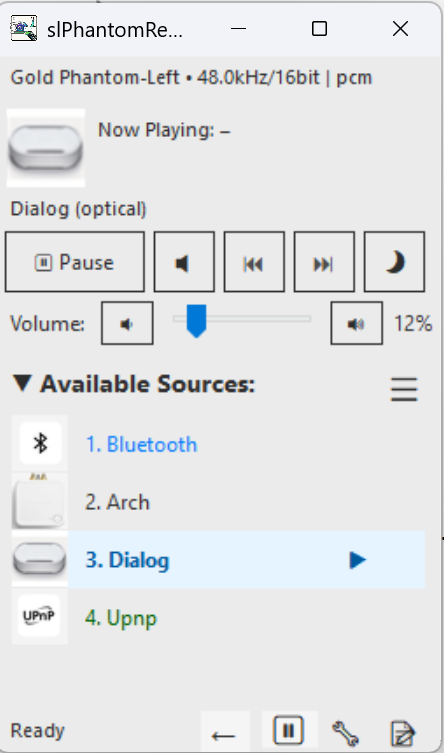
Minimal View
Expanded View
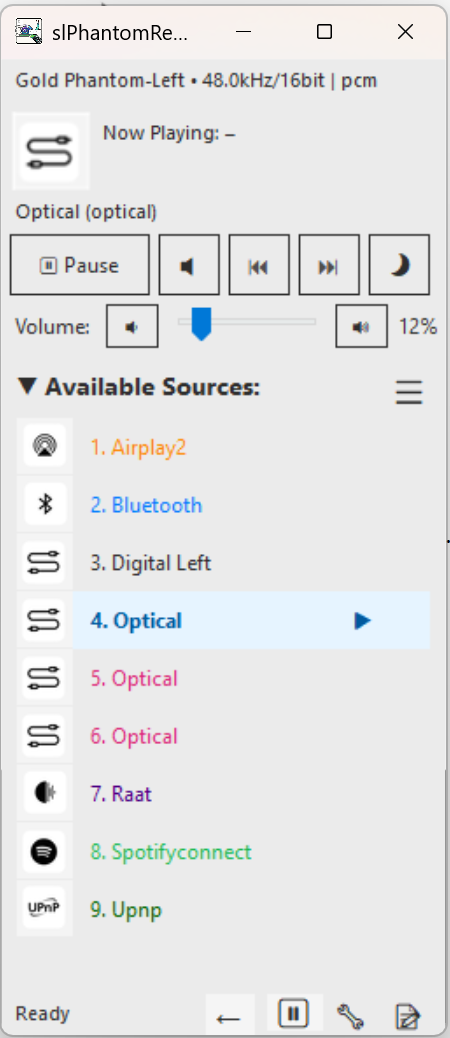
Advanced Controls - Context menus and source selection
Sources Panel
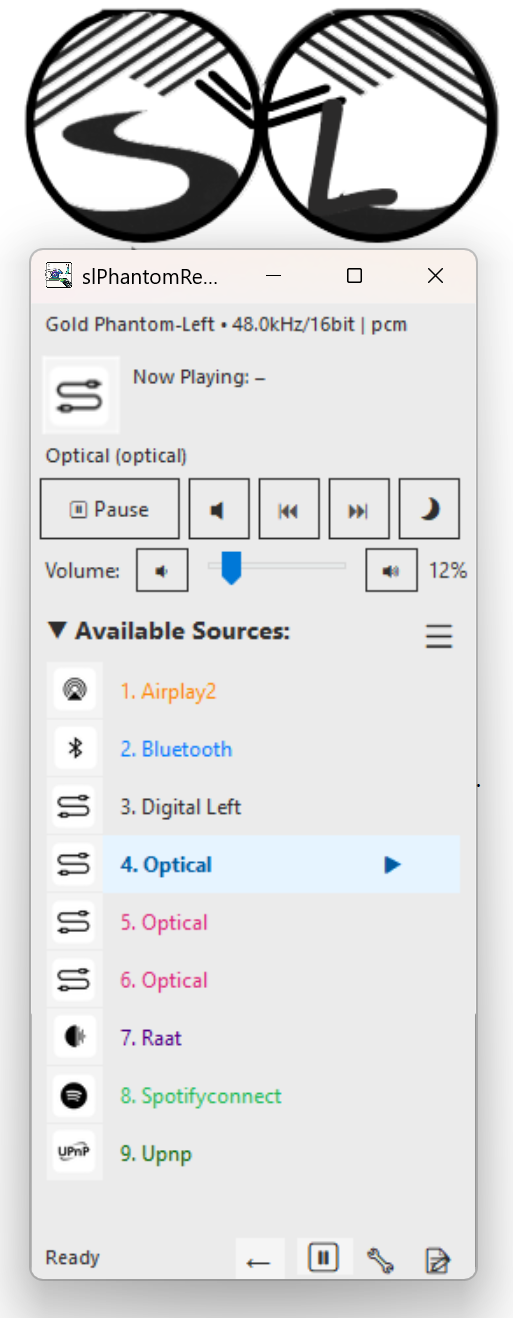
More Options
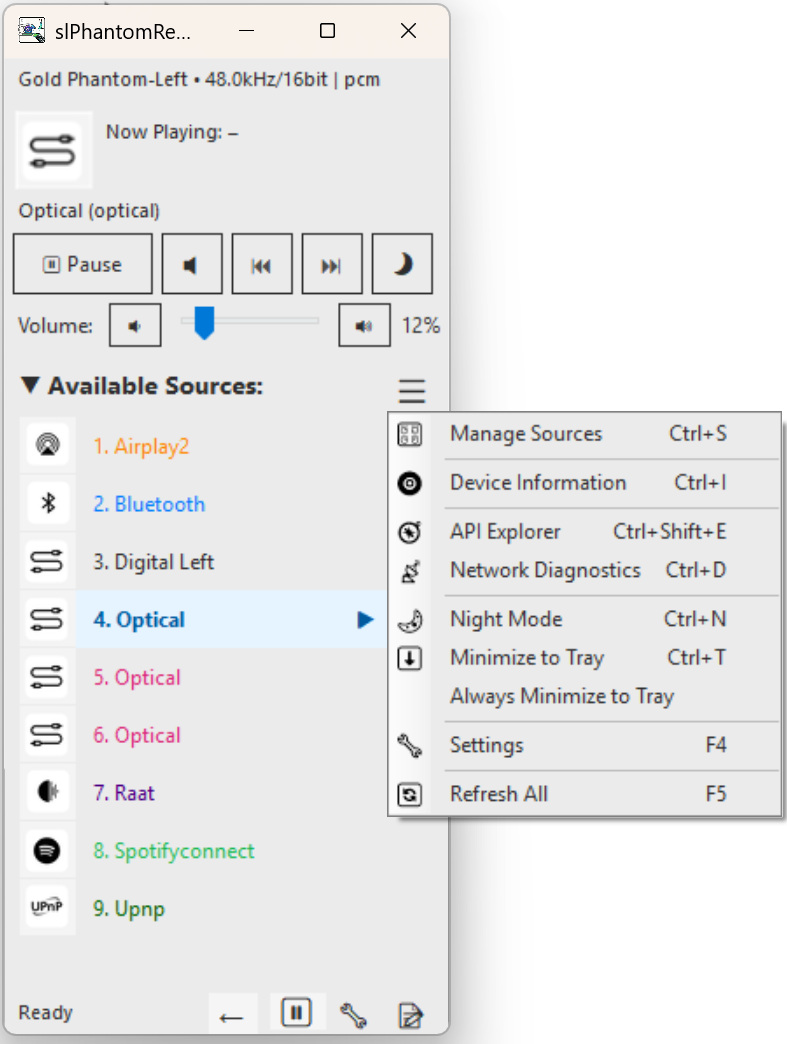
Source Management
Visual Indicators
Color-coded status display:
- Devices: Connected (blue) | Online (green) | Offline (red) | Checking (gray)
- Sources: Visible | Hidden | Active sources shown with highlighted background
- Special: Favorite device | System leader
Source List
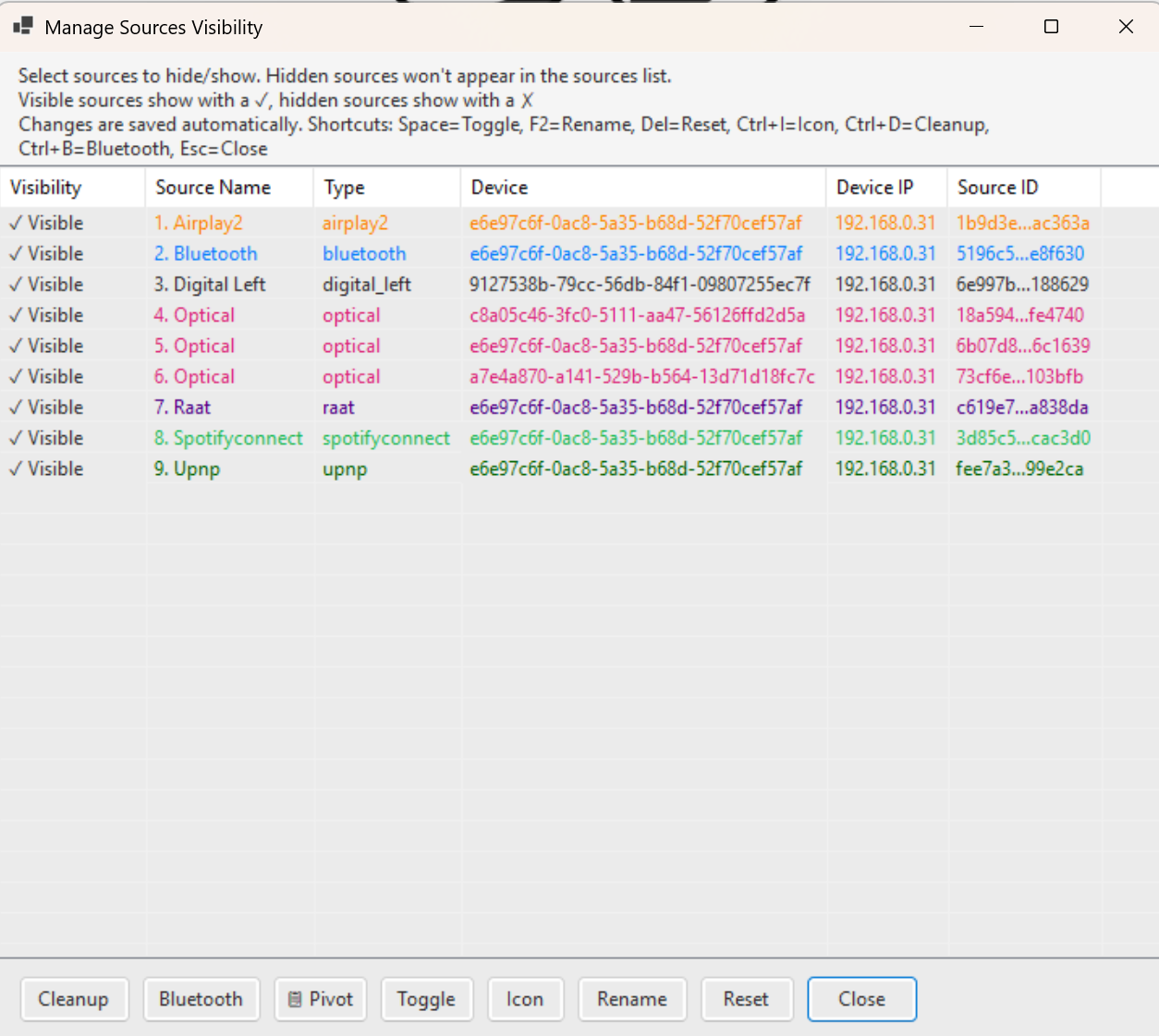
Source Manager
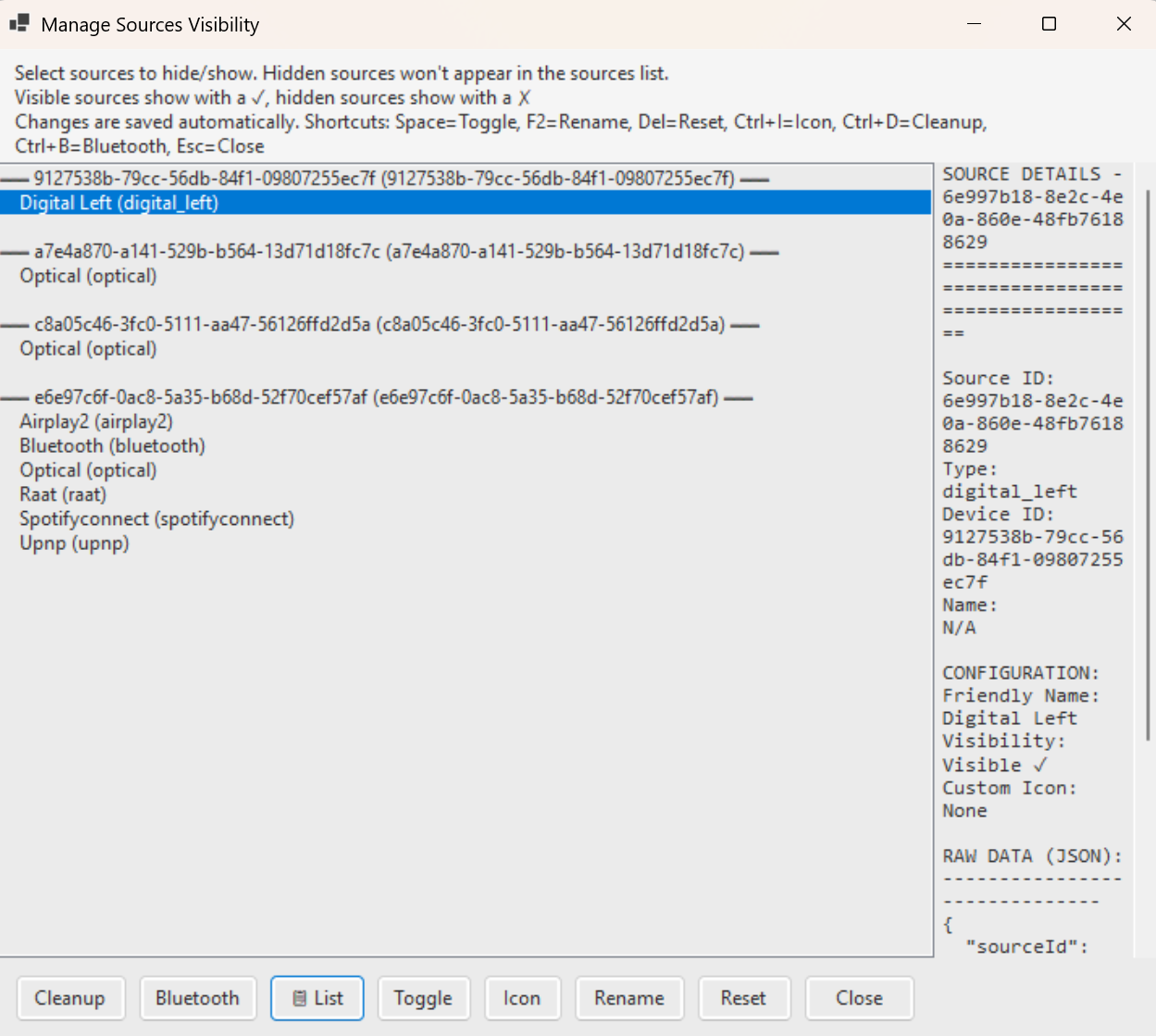
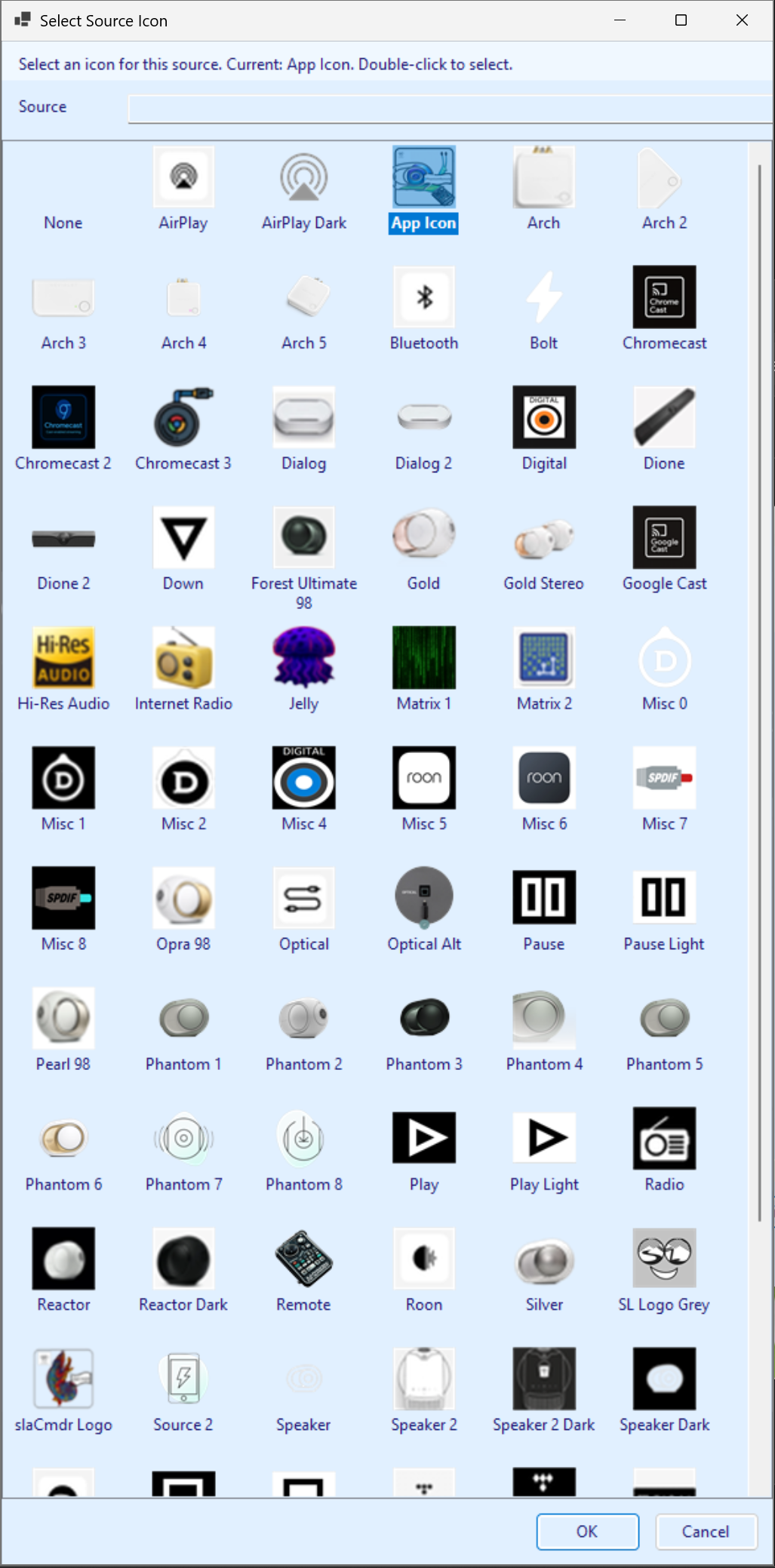
Custom Icons
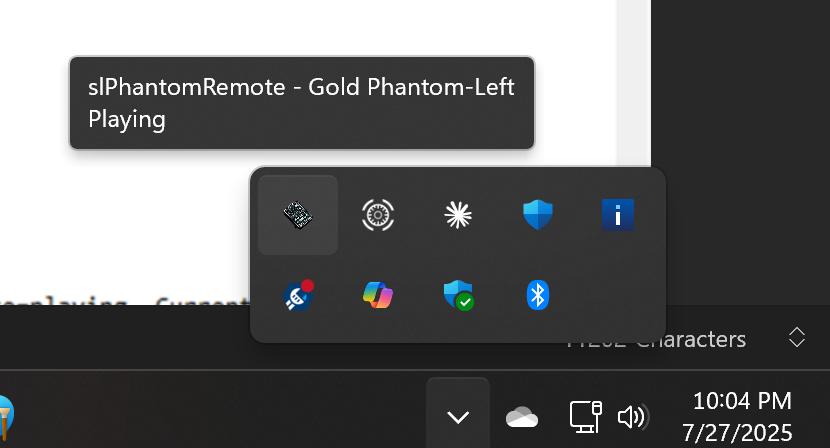
System Tray
Minimize Notification
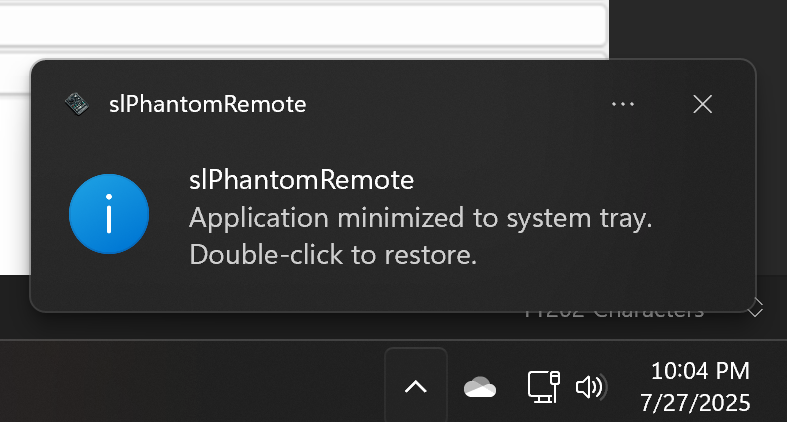
Tray Notifications
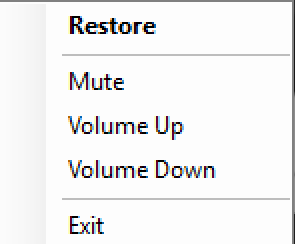
Tray Menu
Settings Organization
Access Settings via the Settings button in the main interface. Settings are organized into logical tabs:
General Settings
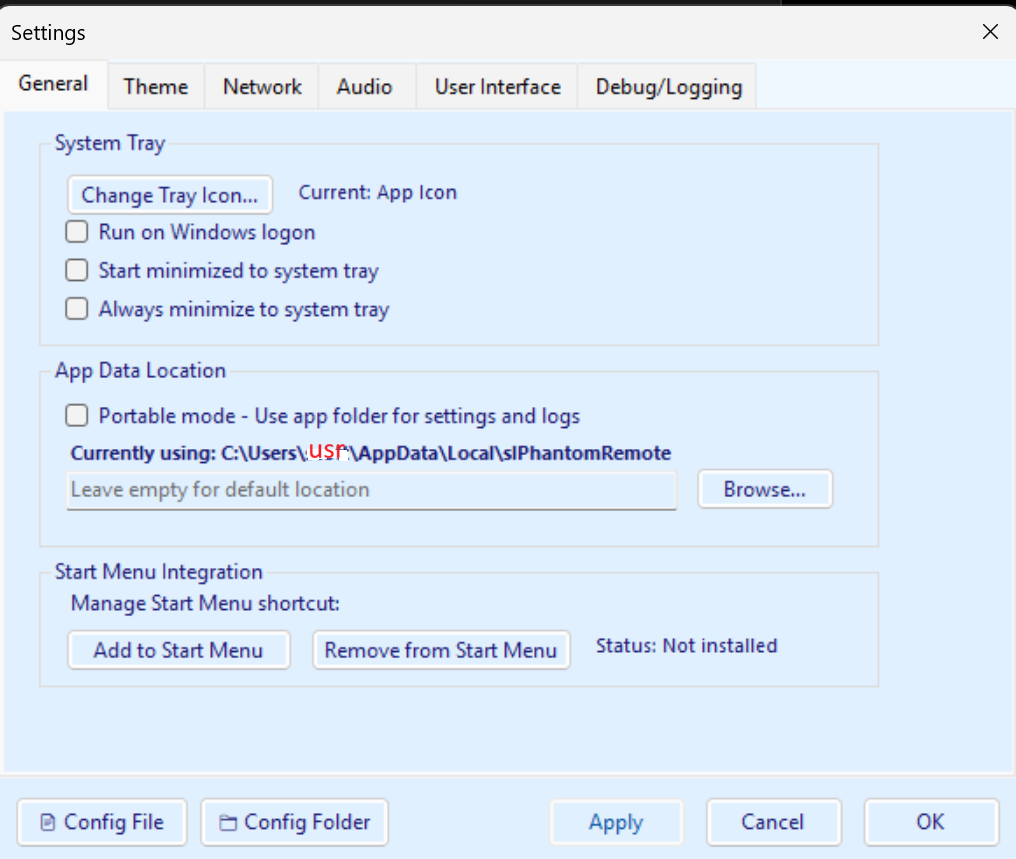
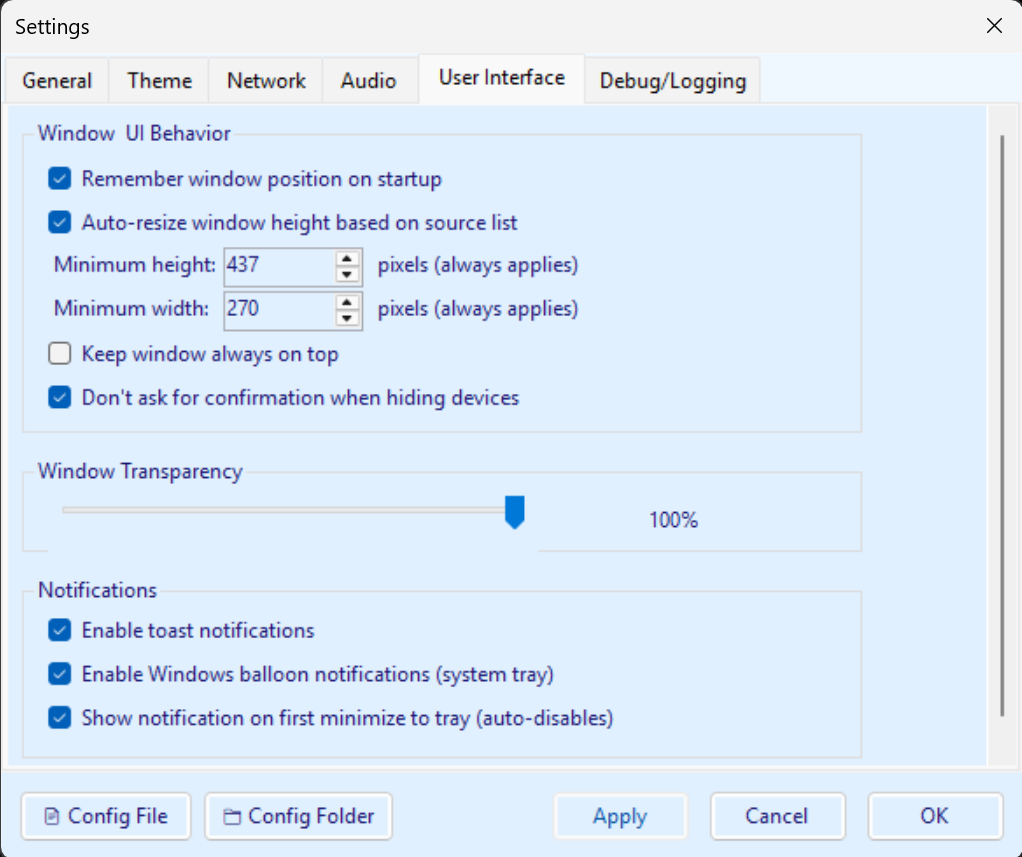
UI Settings
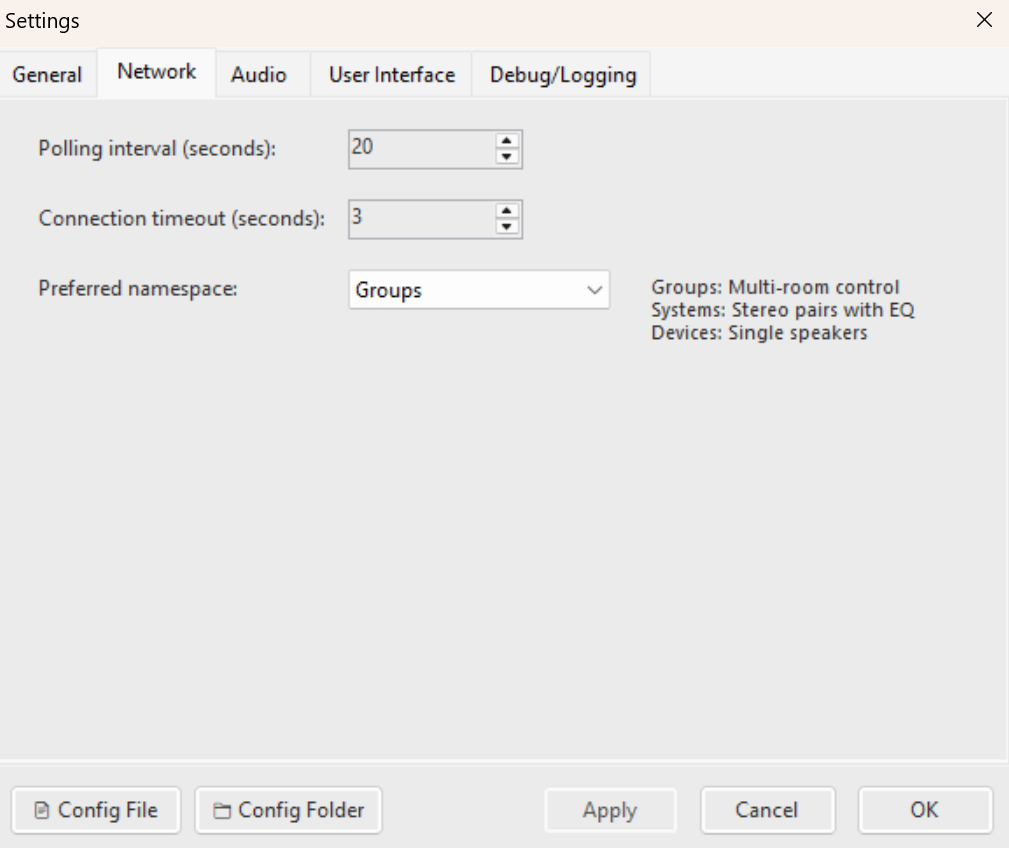
Network Settings
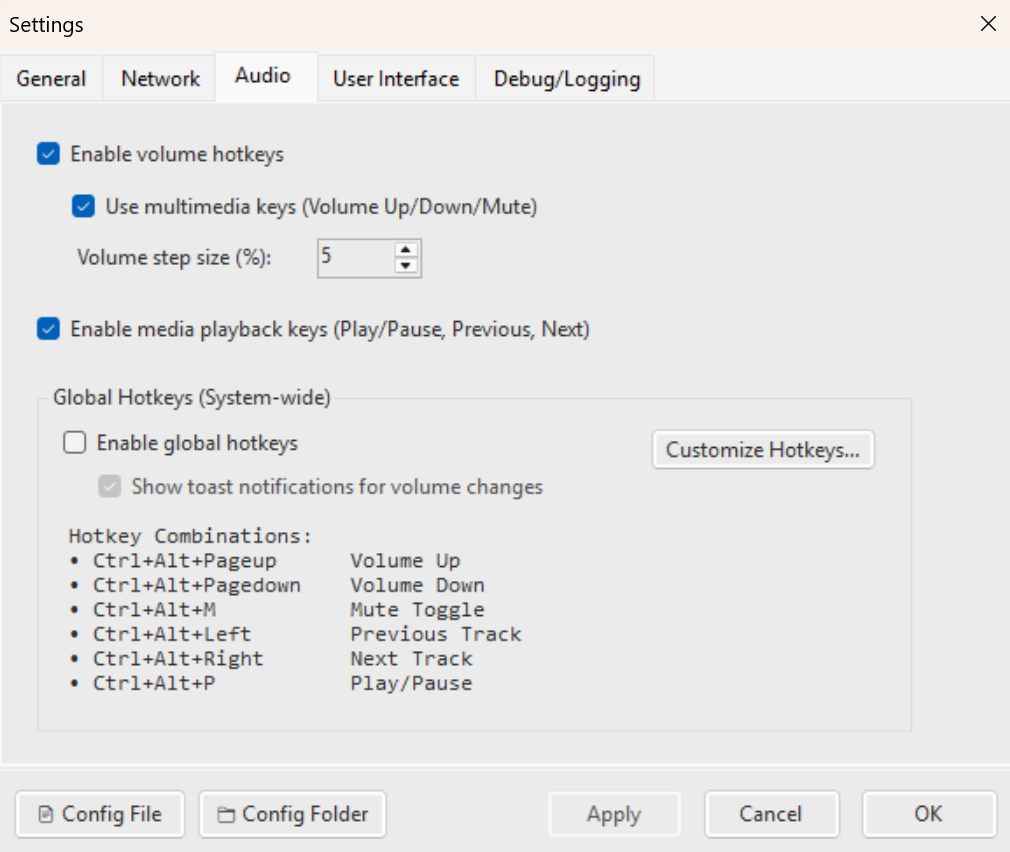
Audio Settings
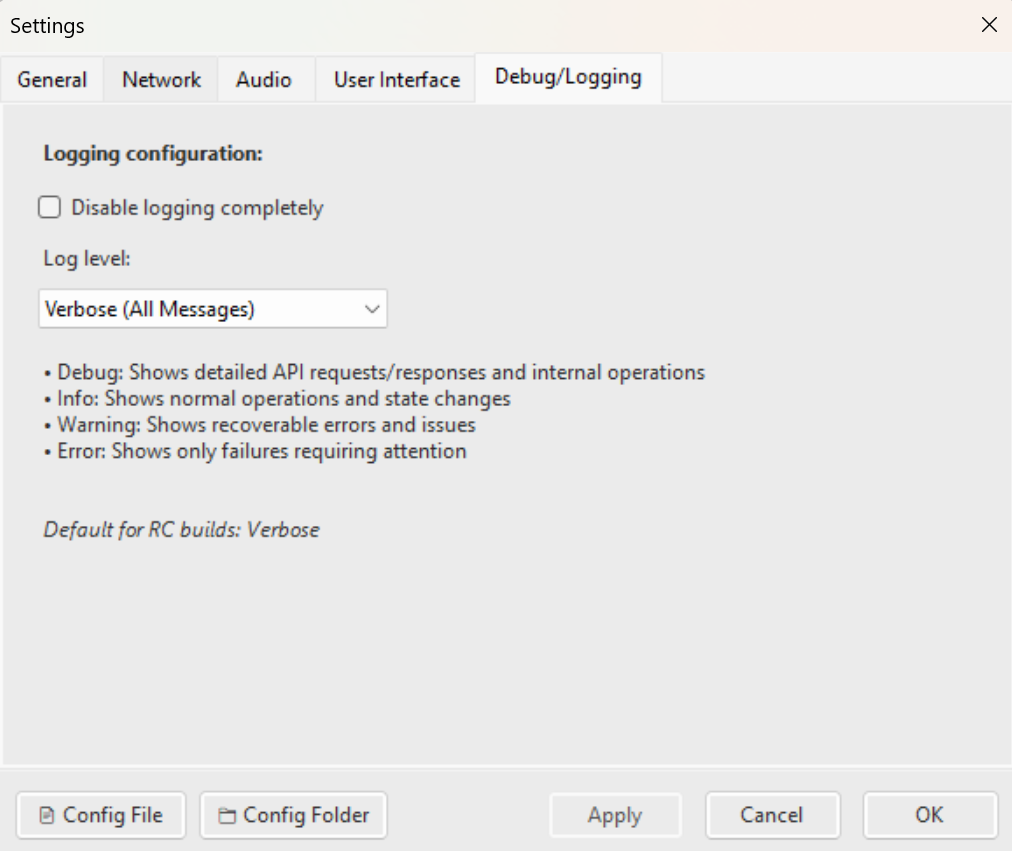
Logging Settings
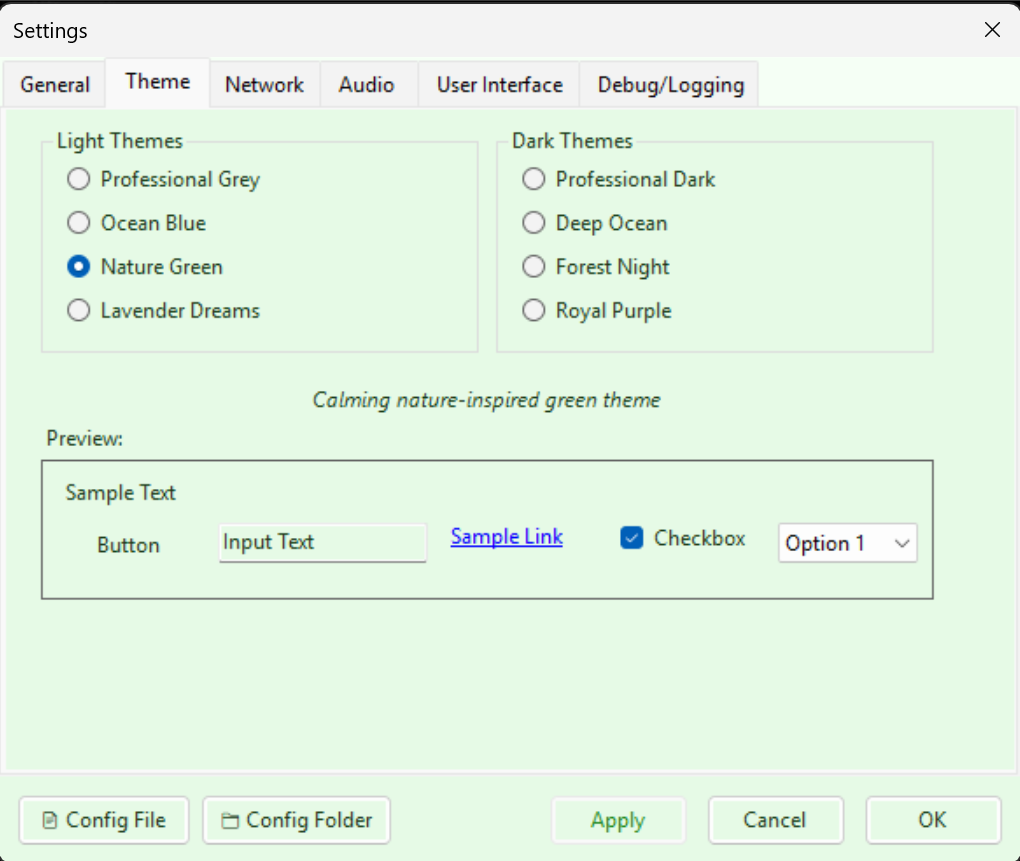
Theme Settings
General Tab
- Startup Behaviors - Configure system tray options
- App Data Location - Configure where settings and logs are stored
User Interface Tab
- Window Behavior - Remember position, auto-resize, minimum height
- Notifications - Toast and balloon notification settings
- Start Menu Integration - Add/remove shortcuts
Network Tab
- Polling interval - How often to check device status (1-300 seconds)
- Connection timeout - Network timeout (1-30 seconds)
- Preferred namespace - Devices / Systems / Groups
Audio Tab
- Volume Controls - Hotkey and media key configuration
- Global Hotkeys - Customizable system-wide media controls
- Volume Toast Notifications - Show volume change feedback
Debug/Logging Tab
- Log Levels - Control logging verbosity (Verbose to Critical)
- Log Management - Access and manage log files
- Debug Features - Developer tools and diagnostics
Advanced Tools
slPhantomRemote includes powerful diagnostic and developer tools for troubleshooting connectivity issues and exploring the Devialet API.
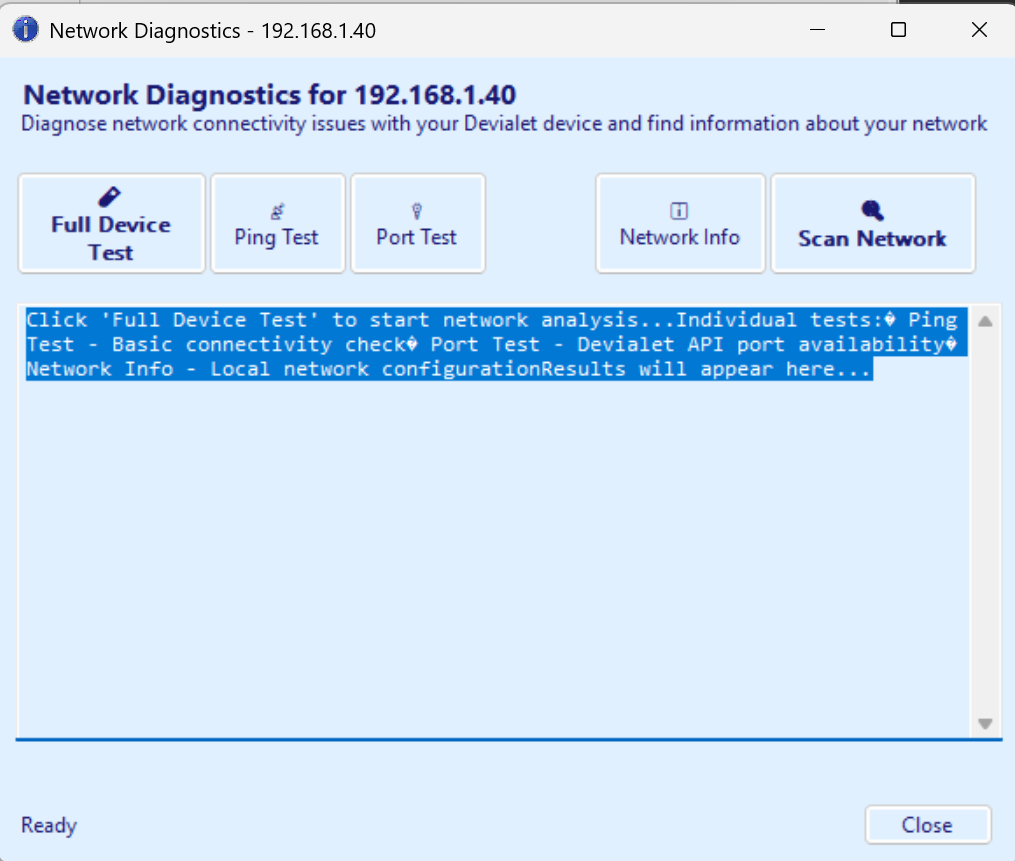
Network Diagnostics
API Explorer
Network Diagnostics
Access via: Right-click a device in Device Manager and select "Network Diagnostics"
A comprehensive network troubleshooting tool that helps diagnose connectivity issues with your Devialet devices:
- Full Device Test - Runs all diagnostic tests in sequence with a detailed report
- Ping Test - Verifies basic network reachability to the device
- Port Test - Checks if required ports are open (80 HTTP, 443 HTTPS, 8080, 1900 UPnP)
- Network Info - Displays local network interfaces, IP addresses, and subnet information
- Scan Network - Comprehensive mDNS/Zeroconf scan to discover all devices on your network
Diagnostic Reports Include:
- Ping response times and packet loss statistics
- Devialet API accessibility testing
- Performance analysis with latency metrics and connection quality rating
- DNS resolution and HTTP response header analysis
- Gateway connectivity verification
- Detailed troubleshooting recommendations
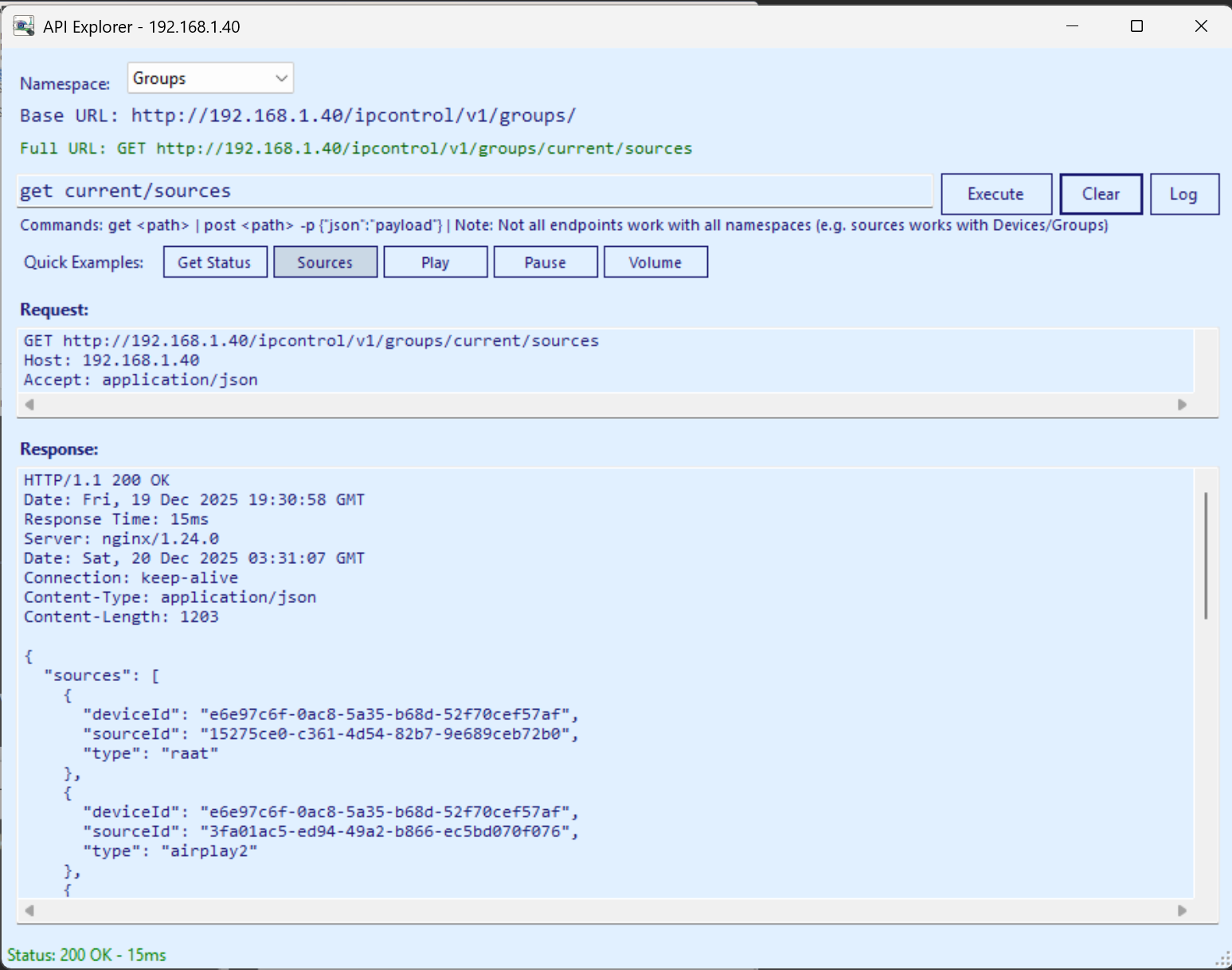
API Explorer
Access via: Ctrl+Shift+E when connected to a device
An interactive tool for directly testing and exploring the Devialet IP Control API. Perfect for developers, advanced users, and troubleshooting:
- Live URL Preview - See the full API endpoint as you type commands
- Namespace Selector - Switch between Devices, Systems, and Groups namespaces
- Request/Response Display - View formatted HTTP requests and JSON responses
- Command History - Use Up/Down arrows to navigate through previous commands
- Quick Examples - One-click buttons for common operations
Command Syntax:
# GET requests
get current                          # Get device status
get current/sources                  # List available sources
get current/soundControl/volume      # Get current volume

# POST requests
post current/playback/play           # Start playback
post current/playback/pause          # Pause playback
post current/soundControl/volume -p {"volume":30}   # Set volume to 30%
API Endpoints: The Devialet IP Control API is organized by namespace. Some endpoints work only with specific namespaces (e.g., sources work with Devices/Groups but not Systems).
Command Line
Interactive CLI Mode
slPhantomRemote.exe uimode:cli                  # Start interactive CLI

# In CLI mode:
discover                        # Find devices
connect 2                       # Connect by index
connect 192.168.1.100          # Connect by IP
connect "Gold Phantom-Left"     # Connect by name

sources                         # List sources with numbers
source 1                        # Select source by index

play / pause / stop            # Playback control
volume 50                      # Set volume
volup / voldown / mute         # Volume controls
next / prev                    # Track navigation

help                          # Show all commands
exit                          # Exit CLI mode
CMD Mode (One-shot commands)
# Discovery
slPhantomRemote.exe -discover
slPhantomRemote.exe -dump

# Control
slPhantomRemote.exe 192.168.1.100 -play
slPhantomRemote.exe 192.168.1.100 -pause
slPhantomRemote.exe 192.168.1.100 -volume 30
slPhantomRemote.exe 192.168.1.100 -mute
slPhantomRemote.exe 192.168.1.100 -playsource "Spotify"

# GUI with auto-connect
slPhantomRemote.exe -connect 192.168.1.100
Keyboard Shortcuts
Playback Controls
| Shortcut | Action |
|---|---|
| Space | Play/Pause |
| Left Arrow | Previous track |
| Right Arrow | Next track |
| M | Mute/Unmute |
Volume Controls
| Shortcut | Action |
|---|---|
| Up Arrow or + | Volume up (smart stepping) |
| Down Arrow or - | Volume down (smart stepping) |
| Hardware volume keys | Volume control |
Source Selection
| Shortcut | Action |
|---|---|
| 1-9 | Quick switch to source (numbers shown next to source names) |
Advanced Controls
| Shortcut | Action |
|---|---|
| F4 | Open Settings |
| Ctrl+T | Minimize to system tray |
| Ctrl+Shift+T | Toggle Light/Dark theme |
| Ctrl+Shift+E | Open API Explorer |
| Ctrl+N | Toggle Night Mode |
| Ctrl+B | Activate Bluetooth pairing |
| Ctrl+S | Open source management |
| Ctrl+M | Open device management |
Global Hotkeys (When Enabled)
| Shortcut | Action |
|---|---|
| Ctrl+Alt+PageUp | Volume up |
| Ctrl+Alt+PageDown | Volume down |
| Ctrl+Alt+M | Mute toggle |
| Ctrl+Alt+P | Play/Pause |
| Ctrl+Alt+Left | Previous track |
| Ctrl+Alt+Right | Next track |
Custom Hotkey Configuration
Global hotkeys can be customized via Settings or in config.json:
"CustomHotkeyMappings": {
    "VolumeUp": "CTRL ALT PAGEUP",
    "VolumeDown": "CTRL ALT PAGEDOWN",
    "Mute": "CTRL ALT M",
    "PlayPause": "CTRL ALT P",
    "NextTrack": "CTRL ALT RIGHT",
    "PreviousTrack": "CTRL ALT LEFT"
}Debugging and Troubleshooting
Log Levels
- Beta/RC builds: Default to Verbose (0) for maximum detail
- Release builds: Default to Error (4) for minimal logging
Log levels explained:
- 0 - Verbose: All messages including detailed traces
- 1 - Debug: Debugging information
- 2 - Info: General information messages
- 3 - Warning: Warning messages
- 4 - Error: Error messages for failures
- 5 - Critical: Critical failures
Logs are saved to: %LOCALAPPDATA%\slPhantomRemote\app-YYYY-MM-DD.log
Tips
- Favorite: Star one device to auto-connect on startup (only one device can be favorited)
- Sources: Double-click to switch, right-click to customize, press 1-9 for quick selection
- Hide Devices: Right-click to hide devices with optional "Don't show again" confirmation
- Bluetooth: Press Ctrl+B or click the Bluetooth icon
- Themes: Ctrl+Shift+T toggles Light/Dark
- System Tray: Volume controls work even when minimized
- Web App: Right-click any device and select "Open Web App" to access device settings