
MusicBee TrueShuffle
Documentation
MusicBee TrueShuffle ensures every track in your library plays exactly once before any repeats.
Explain: How It Works
The Problem: Standard shuffle algorithms pick tracks randomly each time. With a large library, this means some tracks play repeatedly while others are rarely heard. It's like rolling dice - you might roll the same number multiple times before hitting others.
The Solution: TrueShuffle treats your library like a deck of cards. Each track is "dealt" exactly once. Only after every card has been played does the deck reshuffle.
How It Works
- AutoDJ queues tracks — After each song, TrueShuffle adds an unplayed track to your Now Playing queue
- Track plays past threshold — When you listen to enough of a track (e.g., 50%), it's marked as "played"
- State is saved — Your progress is stored in a JSON file that survives restarts, updates, and reboots
- Repeat — TrueShuffle keeps queueing unplayed tracks until all have been played
- Cycle completes — Reset manually or let it auto-reset to start fresh
But what determines when a track is marked "played"?
What Counts as "Played"?
TrueShuffle uses MusicBee's built-in play count threshold — the same setting that controls when MusicBee increments a track's play count. Find it in:
Edit → Preferences → Now Playing

Default: more than 50% played OR more than 240 seconds
Skipped tracks are not counted. If you skip a track before reaching the threshold, it stays "unplayed" and will come back around in shuffle. Only tracks that meet MusicBee's play count criteria get marked as played.
Enabling the Panel
To show the TrueShuffle progress panel:
- MAKE SURE YOU ARE NOT IN NOW PLAYING! Click on a different tab.
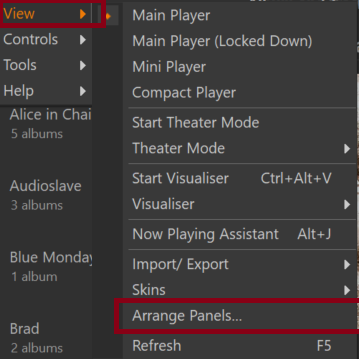
- Go to View → Arrange Panels
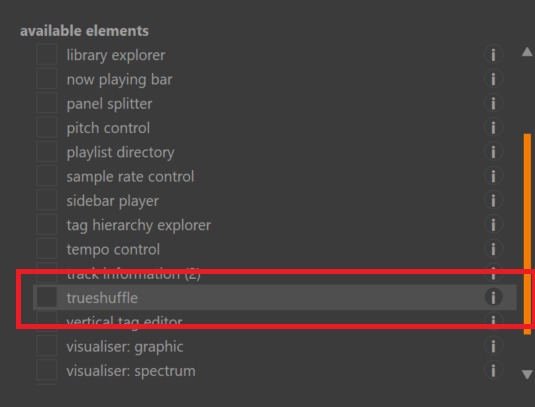
- Find TrueShuffle in the panel list
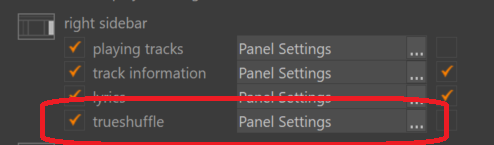
- Check the box to enable it, then click OK
1.
2.
3.
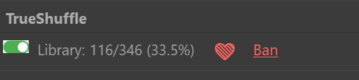
The TrueShuffle Panel
Enabling and Disabling
TrueShuffle is always active when the plugin is loaded. To disable tracking:
- Go to Edit → Preferences → Plugins
- Find TrueShuffle and click Disable
- Your progress is preserved — re-enabling picks up where you left off
Configuration Options
Access settings via Tools → TrueShuffle Settings... or click Configure in Preferences → Plugins.
Plugin Preferences
Configuration Dialog
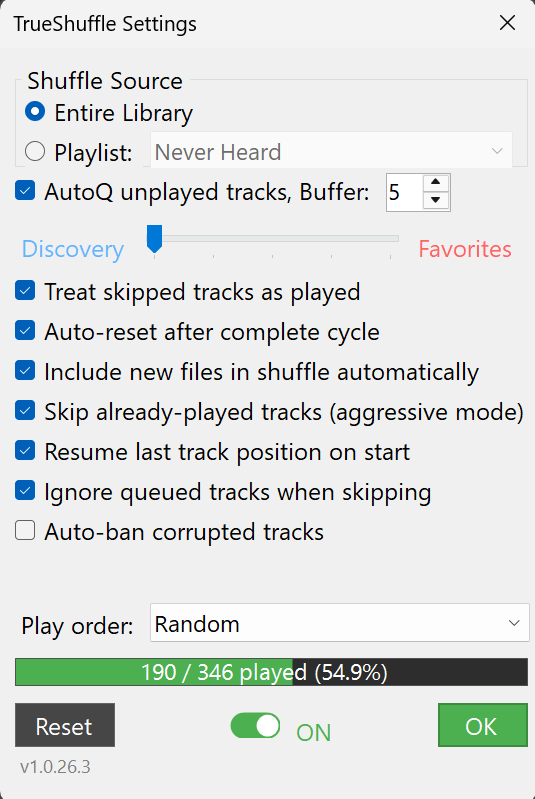
Source Selection
Choose what to shuffle:
- Entire Library (default) — Shuffle all tracks in your MusicBee library
- Playlist — Shuffle only tracks from a specific playlist
Each source maintains independent progress. Switching sources loads that source's state. State files are stored per-source (e.g., state_Library.json, state_MyPlaylist.json).
| Setting | Default | Description |
|---|---|---|
| Shuffle Source | Library | Choose between Entire Library or a specific Playlist. |
| Queue unplayed tracks (AutoDJ mode) | On | Automatically queues the next unplayed track after each song. This is the core feature. |
| Discovery ↔ Favorites slider | 50% | Controls the balance between discovering new music and hearing favorites. See Shuffle Pools below. |
| Treat skipped tracks as played | Off | When enabled, skipped tracks are marked as played. When disabled, skipped tracks come back around. |
| Auto-reset after complete cycle | Off | Automatically restart when all tracks have been played. |
| Include new files in shuffle automatically | On | When files are added to your library, they're automatically included as unplayed tracks in the current shuffle. Disable if you prefer new files only appear after a reset. |
| Skip already-played tracks (aggressive mode) | On | If a track that was already played this cycle starts, TrueShuffle skips it automatically. Makes TrueShuffle more "in charge" of playback. |
| Resume last track position on start | On | When MusicBee restarts, resume the last track at the saved position. |
| Ignore queued tracks when skipping | On | When skipping banned/played tracks, pull from source instead of Now Playing queue. Prevents cascade-skipping through existing queue. |
| Play order | Random | How to select the next track: Random, By Album, By Track, Date Added (Oldest), Date Added (Newest). |
Shuffle Pools (Discovery ↔ Favorites)
TrueShuffle divides your unplayed tracks into three pools:
| Pool | Description | Base Chance |
|---|---|---|
| Discovery | Tracks with 0 plays in MusicBee (never heard) | Slider-controlled |
| Familiar | Tracks with 1+ plays, not loved (heard but not special) | 20% base |
| Favorites | Tracks marked as "Loved" in MusicBee | Slider-controlled |
How the slider works:
- Familiar always has 20% base chance
- The remaining 80% is split between Discovery and Favorites based on slider position
- At 50%: 40% Discovery, 20% Familiar, 40% Favorites
- At 0%: 80% Discovery, 20% Familiar, 0% Favorites (discover new music)
- At 100%: 0% Discovery, 20% Familiar, 80% Favorites (play your loved tracks)
When a pool is empty, TrueShuffle falls back to other pools to ensure continuous playback.
Play Order Modes
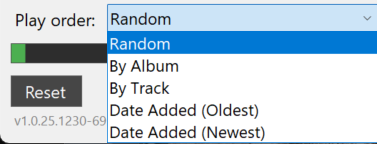
| Mode | Behavior |
|---|---|
| Random | Pick any unplayed track randomly |
| By Album | Complete album in track order, then pick random new album |
| By Track | Play in library file path order |
| Date Added (Oldest) | Play oldest additions first |
| Date Added (Newest) | Play newest additions first |
Love and Ban Controls
The TrueShuffle panel includes two quick-action controls:
Heart (♡ / ❤) - Love Toggle
- Click the heart to toggle MusicBee's "Love" tag on the current track
- Empty heart (♡): Track is not loved
- Filled heart (❤): Track is loved - goes into the Favorites pool
- Loved tracks are prioritized when the Discovery ↔ Favorites slider is moved toward Favorites
Ban Link - No-Play List
Never want to hear a particular track again? Click the red Ban link. The track is immediately banned and skipped.
- One-click ban: No confirmation dialog, no questions asked
- Auto-skip: Banned tracks are skipped automatically and excluded from the queue
- Manual unban: To unban, edit the file with Notepad:
%AppData%\MusicBee\mb_trueshuffle\banned.txt
The banned list is just a text file with one file path per line. Delete a line to unban that track.
Resetting Progress
To start fresh and mark all tracks as unplayed:
Tools → TrueShuffle Settings... then click the Reset button.
Reset clears all played tracks AND refreshes the library to pick up any new files added since startup.
State Storage
The plugin stores its data in:
%AppData%\MusicBee\mb_trueshuffle\Files:
settings.json- User settingsstate_Library.json- Library shuffle state (orstate_PlaylistName.jsonfor playlists)banned.txt- Banned tracks (No song for you!)debug.log- Debug log (when enabled)
State file includes resume information:
{
  "playedTracks": ["file://path/to/song1.mp3", "file://path/to/song2.mp3"],
  "libraryHash": "a3f8b2c1",
  "totalTracks": 12847,
  "lastReset": "2025-12-01T00:00:00Z",
  "lastPlayed": "2025-12-28T21:45:00Z",
  "resumeTrackUrl": "file://path/to/lastplaying.mp3",
  "resumePositionMs": 45000,
  "resumeTimestamp": "2025-12-30T10:30:00Z"
}
Technical Details
Architecture
MusicBee TrueShuffle/
├── Plugin.cs              # Main entry point, MusicBee integration
├── ShuffleState.cs        # Persisted state management
├── ShuffleEngine.cs       # Shuffle logic and track selection
├── ShuffleSettings.cs     # Configuration options
├── BanList.cs             # No-play list for banned tracks
└── MusicBeeInterface.cs   # MusicBee API definitions (from SDK)
MusicBee API Integration
| API Method | Purpose |
|---|---|
Library_QueryFilesEx() | Get all library tracks |
NowPlaying_GetFileUrl() | Current playing track (unique ID) |
NowPlaying_GetDuration() | Track duration for threshold calculation |
Player_GetPosition() | Current playback position |
TrackChanged notification | Trigger to check if previous track was "played" |
Setting_GetPersistentStoragePath() | Plugin data folder location |
Setting_GetValue(SettingId) | Get MusicBee's play count threshold settings |
Play Detection Logic
// On track change, check if PREVIOUS track was played long enough
// Uses MusicBee's play count threshold settings
if (lastTrackUrl != null && lastTrackDuration > 0)
{
    // Get MusicBee's thresholds (e.g., 50% or 240 seconds)
    int triggerPercent = Setting_GetValue(PlayCountTriggerPercent);
    int triggerSeconds = Setting_GetValue(PlayCountTriggerSeconds);

    double playedPercent = (double)lastTrackPosition / lastTrackDuration;
    int playedSeconds = lastTrackPosition / 1000;

    // More than X% played OR more than Y seconds
    if ((playedPercent * 100 > triggerPercent) || (playedSeconds > triggerSeconds))
    {
        engine.MarkPlayed(lastTrackUrl);
    }
}
Building from Source
Prerequisites
- Visual Studio 2022 or .NET SDK
- .NET Framework 4.8 targeting pack
Build Commands
# Debug build
dotnet build -c Debug

# Release build
dotnet build -c Release
Output: bin\Release\net48\mb_trueshuffle.dll
Library Change Handling
When your library changes:
- New tracks added: Automatically included as "unplayed"
- Tracks removed: Cleaned up on next startup
- Library rehash: Performed on startup to detect changes
Known Limitations
- Tracks are identified by file URL - moving files creates "new" tracks
Troubleshooting
Developer Mode
If tracks aren't being counted as played, you can enable debug logging through Developer Mode:
- Open TrueShuffle settings
- Click the version label 7 times to unlock Developer Mode
- A
[DEV]indicator appears and a debug logging checkbox becomes visible - Enable the debug logging checkbox
- Play some tracks and skip to the next
- Check the log file:
%AppData%\MusicBee\mb_trueshuffle\debug.log
The log shows position, duration, percentage played, and threshold values for each track change.
To hide Developer Mode options, click the version label again.
Common Issues
- Count stays at 0: Check that the plugin is enabled in Preferences → Plugins
- Tracks not counting: You must play past MusicBee's threshold (default 50% or 240 seconds)
- Panel not visible: Enable it in View → Arrange Panels
License
GPL3 - See GNU General Public License v3 for details.