"To push 'Play' use slPhantomTray."
slPhantomTray pilots the Devialet Phantom speakers and accessories from your Windows desktop.
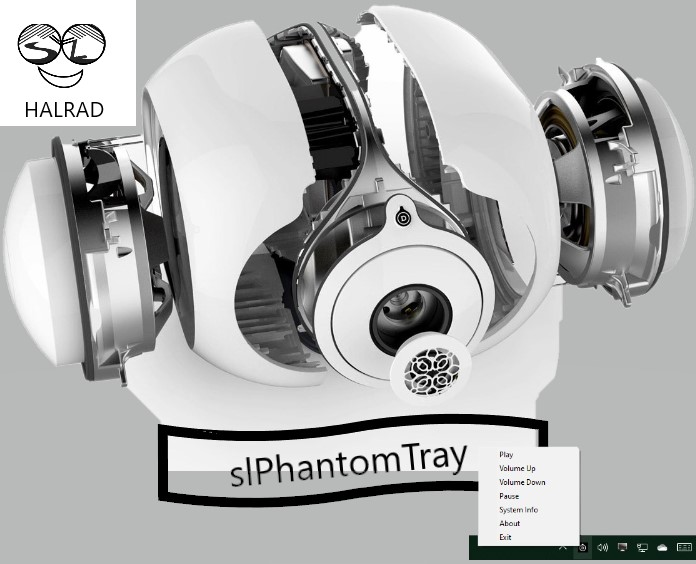
slPhantomTray 1.0 is a Windows 10 (and later) remote control APP for Devialet Phantom speakers that makes it easy to Play, Pause, change the Volume and choose your source from the Windows desktop.
Getting started
Get the App - R38
- After install look for slPhantomTray in the Start menu.
- Start the app and look for the D logo in the system tray.
- Start your favorite source playing using the Devialet APP before setting up the slPhantomTray application.
- Use right click on the icon and select the SystemInfo menu to set up your speakers IP address and Default Source. (its easy as 1,2,3,4.)
How-to
Mouse-over the logo for helpful tool tips.
Quick control
Once setup is complete you get quick access by the click-able icon in the system tray.
- SINGLE mouse click: to show the remote controls. (Click on the tray icon, not on an empty space)
- double click to Start/stop playing the default source. (Click on the tray icon, not on an empty space)
- right click: to view the context menu.
Features (quick list)
- Single click on icon: pop-up volume control bubble
- Double click on icon: plays/pause music
- Right click on icon: context menu with more choices
- Mouse wheel on icon: controls volume
- Run the app on Windows startup (auto configure)
- Save the system IP settings
- save the default source to start playing
- Change the default source and save it
- Set Volume and save it as the default volume
- play/pause current source
- mute unmute
- volume up, volume down
- cycle to next source
- cycle to previous source
- show current source being played
- select and play any source on the system
- change the volume level up or down
- Review all the sources available on the system.
- Show the currently playing source details
- System info as a GUI. (API endpoint information)
- hide from the task bar: runs in system tray only.
- Test network connectivity to the speaker for troubleshooting
- Config file is saved in common user folder. C:\Users\yourname\Documents\slPhantomTray\
New in this Release R38
2/18/2024 - R38: Bug fixes source list and play source. Icon position tooltips refresh the SourceList icon. Show Source state icon (works across all playing states and sources. Gives you a visual indication of what is playing in the system tray). Update - default volume applied on start app.
2/15/2024 - R37: Bug fixes current source list. Added right click menu to show what is currently playing on the system. Helpful for instances where you have multiple devices and want to know which is currently active.
Recent in Previous Release R36
2/12/2024 - R36: Support for mute controls. Now defaults to Systems for Devialet phantom new setup.
2/11/2024 - R35: show current source playing, New - Power Off functionality.
2/10/2024 - R34: cycling source list. get system presets. Add support for preset selection. Much Better Tool tips for the system tray icon, shows current volume and playing state. (mouse over the icon)
2/9 - R32: Bug fixes get source list. Select and play a source. default to Systems namespace.
2/9 - R31: Bug fixes for the source list and "play index" options. Explore all the configured sources on your speaker. Made it easier to browse the source list. Great feature for discovery! Added Get Sources option to the context menu. This allows you to browse ALL the sources available to the speaker.
2/9 - R30: Added "Show currently playing". Displays Currently playing source details and some meta-data, if available from the source (Tidal, Spotify, etc).
2/9 - R28 Added GUI for the some of the commonly used system-info. API endpoint selection and results. Makes it easier to setup and also troubleshoot connectivity. Option to Delete Network and restart IP. config - resets all the network settings back to zero. Simplifies the setup. the 'Get System Info' now shows various forms of system information available from the Devialet API.
2/9 - R26 updated the tray tooltip, show volume and source details while 'hovering' on the tray icon. Updated Tool tips to be more descriptive of the action.
2/9 - R25 : Added support for multiple speaker "ip address" and system configurations. Delete and restart option to reset the network connectivity. Select from a previously used IP address list. (you can have multiple speakers configured)
2/9 - R22: Updated UI
2/9 - R21: Add API namespace selection to use Systems instead of Groups. slPhantomTray now defaults to using the 'Systems' namespace which works better for the newer speakers and setups and probably should be the default.
2/9 - R20: more bug fixes for source selection and play. This is a major feature that allows you to see ALL the configured sources for the speaker, instead of just cycling to a source 'blindly'.
2/9 - R19: added SystemInfo:Explore:Combo boxes for System and Source API calls to provide better templates and defaults. Default to show the currently playing source rather than all group sources. Now a little easier to find the SourceID of the currently playing source to make it the default.
2/8 - R18:added SystemInfo:Config tab checkbox option to create/delete slPhantomTray app shortcut in the current users startup folder.
Why does it exist
The app was written to replace the loss of spark in the DOS1 to DOS2 upgrade, loss of the the most basic functionality to control the System to Play, Pause, Change the Volume and change Sources from Windows.
Collaborate
If you have suggestions or want to report issues slcmdr@eltekco.com